What the phone is asking
The operative does not type their name. They scan the site QR and work down five steps. If a company or a name is missing, the orange box on the form tells them to ask a Quantum manager. That is this guide.
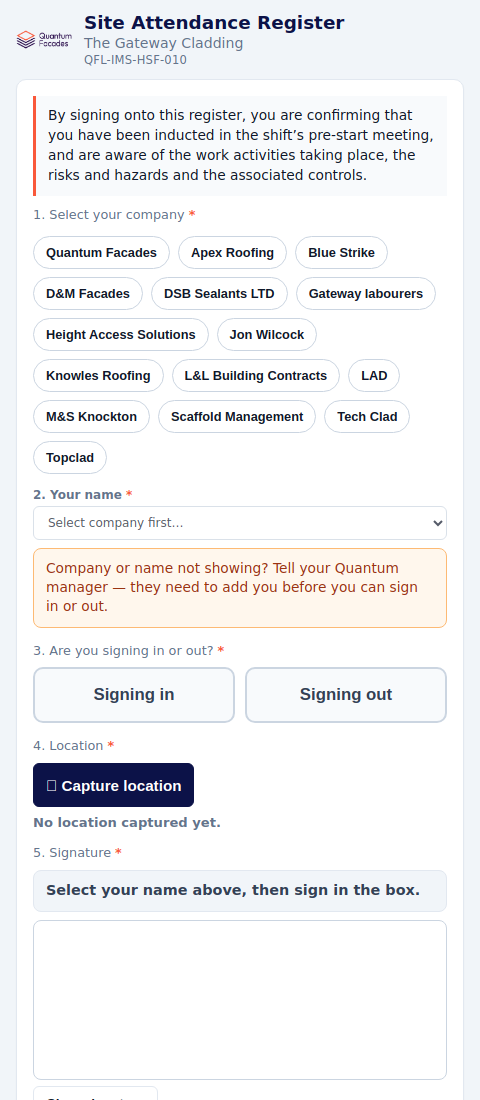
- Company. A button for each company on the company list.
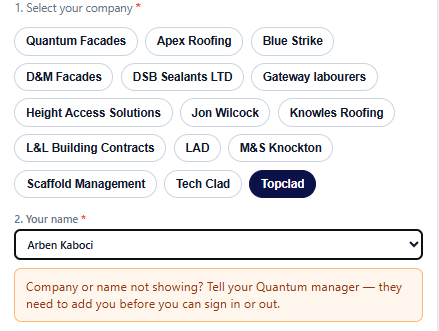
- Name. Only people listed against that company. The box stays on “Select company first…” until a company is pressed.
- Signing in or Signing out.
- Capture location. The phone must allow location. There is no sign-in without it.
- Signature. They draw it in the box. This is their attendance signature, separate from a manager’s My Signature.
Start here — what are they looking at?
| What they say | What it means | What you do |
|---|---|---|
| My company is not on the buttons. | The company is not in the company list. | Add the company, then refresh. |
| The company is there. The name box says “No names listed — ask your Quantum manager”. | The company is on the list, but no operative file is matched to that company name. | Make the file name match the company, then refresh. |
| The company is there. My name is not in the list. | That person is not in that company’s operative file on this project. | Add the operative, then refresh. |
| I can pick my name. It then says “No signed Quantum site induction on this project for this operative.” | Gateway only. There is no signed induction for that exact name, or the induction was signed in a shorter name. | Fix the induction. |
| “Already signed in. Sign out before signing in again.” | They still have an open visit today. | They press Signing out, capture location, sign, then sign in again if they need to. |
| “Has no sign-in today” or “already signed out”. | They pressed Signing out with no open visit. | They press Signing in. |
| Location permission denied, or location will not capture. | The phone blocked location. | They allow location for the browser, turn GPS on, and press Capture location again. |
On Gateway, a person who can already pick their name can still be stopped by the induction. On other projects the induction check is not switched on, so a missing induction will not stop the sign-in. The company list and the name list apply on every project.
The two spreadsheets
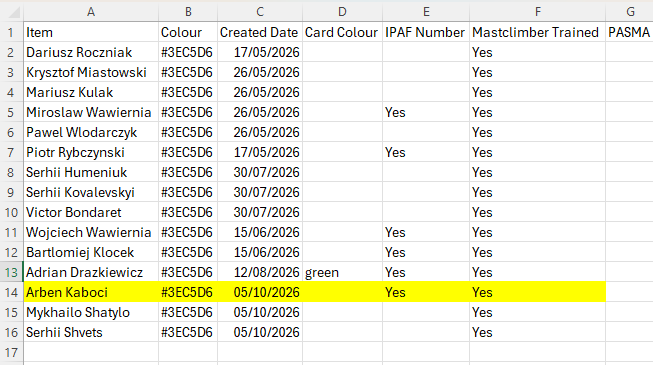
Attendance reads two files in Site Documents. They are edited in Excel. The Hub only sees them after Refresh name lists.
| File | Where it lives | What attendance uses |
|---|---|---|
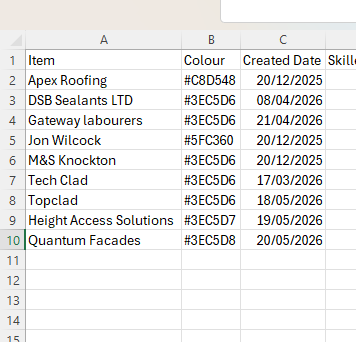
| subcontractors.csv | Site Documents → General → subcontractors.csv One file for the whole company, not one per job. |
The Item column. That text becomes the company button. |
| The company operative file | Site Documents → General → the project folder → Operations → csv → Operatives names | The Item column. That text becomes the name in the dropdown. The file name must match the company in subcontractors.csv. |
Gateway’s project folder is 062_Gateway_Cladding_LCL. Urban One is 099_Urban_One_BBP. Parliament Place is 096_Parliament_Place_LCL. Each project has its own Operatives names folder. A person added on Gateway does not appear on another job until they are added in that job’s folder too.
Add a company
Do this when the company button is missing.
- Open Site Documents → General → subcontractors.csv.
- Add a row. In Item, type the company name the way it should appear on the button. Copy the colour and date from the row above if you want the sheet to look the same. Attendance only needs Item.
- Save, close Excel, and check the file back in if SharePoint asks.
- Create that company’s operative file on the project. A company with no file still gets a button, and the name box then says no names are listed. Follow the file name rules and add the people.
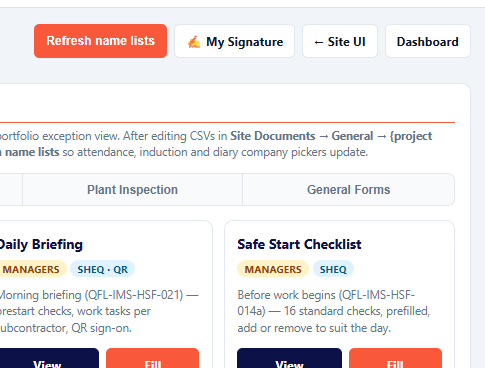
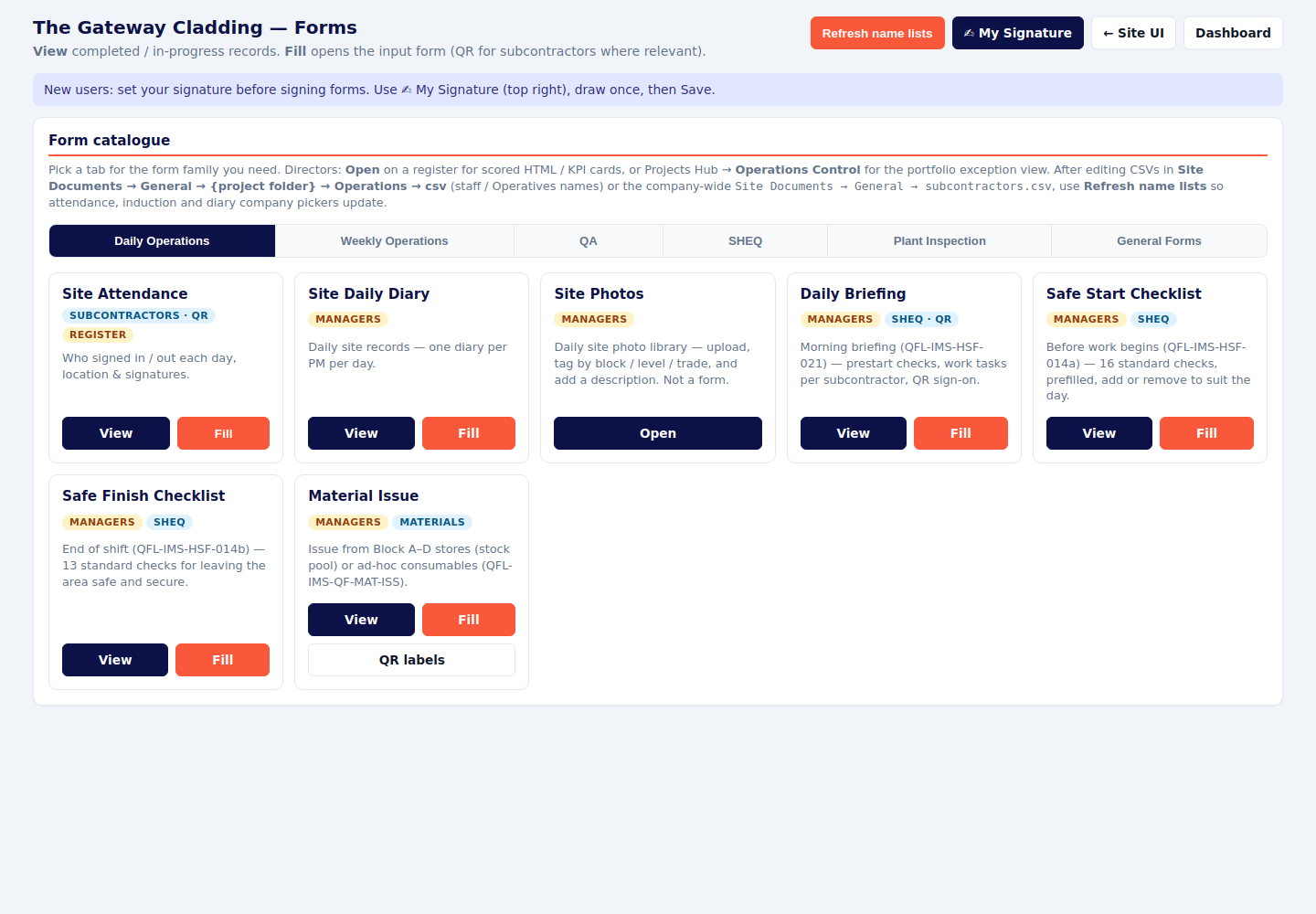
- On the Hub, open Forms and press Refresh name lists. Wait until it confirms the lists have refreshed.
- The operative closes the QR page and scans again. The new button is there.
The operative file must match the company
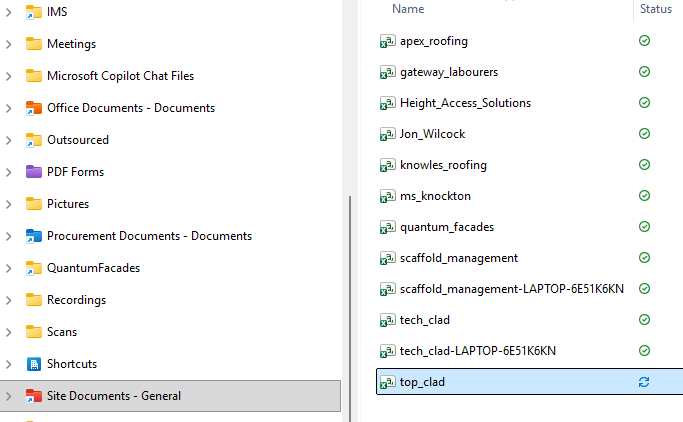
The file sits in Operatives names. Its name, without .csv, has to be the company from subcontractors.csv:
- Lower case is fine. Capitals are ignored.
- Spaces become underscores.
- & is left out. M&S Knockton becomes
ms_knockton.csv. - Ltd or Limited on the end is ignored.
- Underscores in the middle are ignored when matching, so
top_clad.csvstill matches Topclad. Prefer the simple version: spaces to underscores.
| Item in subcontractors.csv | File to create |
|---|---|
| M&S Knockton | ms_knockton.csv |
| Height Access Solutions | height_access_solutions.csv |
| Tech Clad | tech_clad.csv |
| DSB Sealants LTD | dsb_sealants.csv |
| LAD | lad.csv |
One file per company. Leave out extra copies with a laptop name on the end. If you are unsure, copy an existing company file, rename it using the table, delete the old names, and put the new people in Item.
Add an operative
Do this when the company button is there and the person’s name is not in the list.
- Open that project’s Operatives names folder and open the file for their company.
- Add a row. In Item, type the full name and surname, the same words you will put on the induction. “Aiden Manton”, not “Aiden”.
- Fill the card columns while you are there if you know them. IPAF Number, Mastclimber Trained, PASMA, NPORS and CPCS are what the plant forms read later. Attendance itself only needs Item.
- Save, close, and check the file in.
- Forms → Refresh name lists.
- They scan the QR again, press their company, and pick the new name.
On Gateway they can still be stopped after that if the induction name does not match. Do the induction next.
Induction — Gateway
On Gateway the sign-in checks for a signed induction on this project for the name they picked. The message is:
That message covers two different problems. Check which one it is before you redo the paperwork.
No induction at all
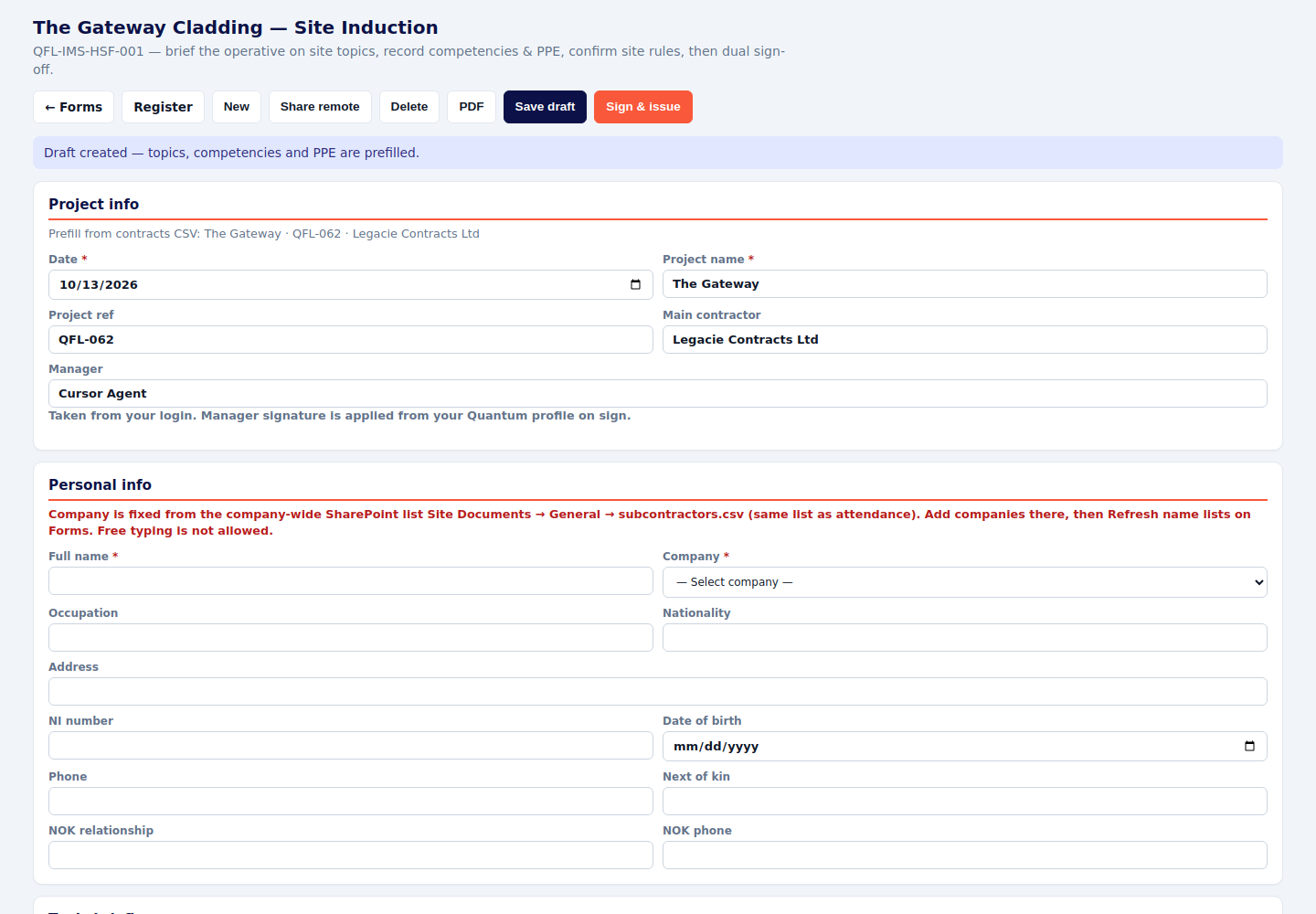
- Forms → SHEQ → Site Induction → Fill.
- Full name and surname, identical to Item in the operative file.
- Company picked from the list. That list is the same subcontractors.csv. Free typing is switched off.
- Brief the topics, record the cards, both parties sign, then Sign & issue.
- They sign in again with the name from the list.
Induction exists, but the name is wrong
Open the induction register and read the name on the signed form. Compare it with Item in the operative file.
- Aiden Manton matches Manton Aiden. The words can be in either order.
- Aiden does not match Aiden Manton. A missing surname is a different person to the sign-in.
- A one or two letter typo can still match. Do not rely on that. Make the two names identical.
A signed induction is locked. If you can see Unlock on that form, unlock it, correct the full name, and sign it again. If Unlock is not on your screen, ask an administrator to unlock it. A new induction signed in the correct full name also clears the gate. The person then picks the list name, not the short name that was on the old sheet.
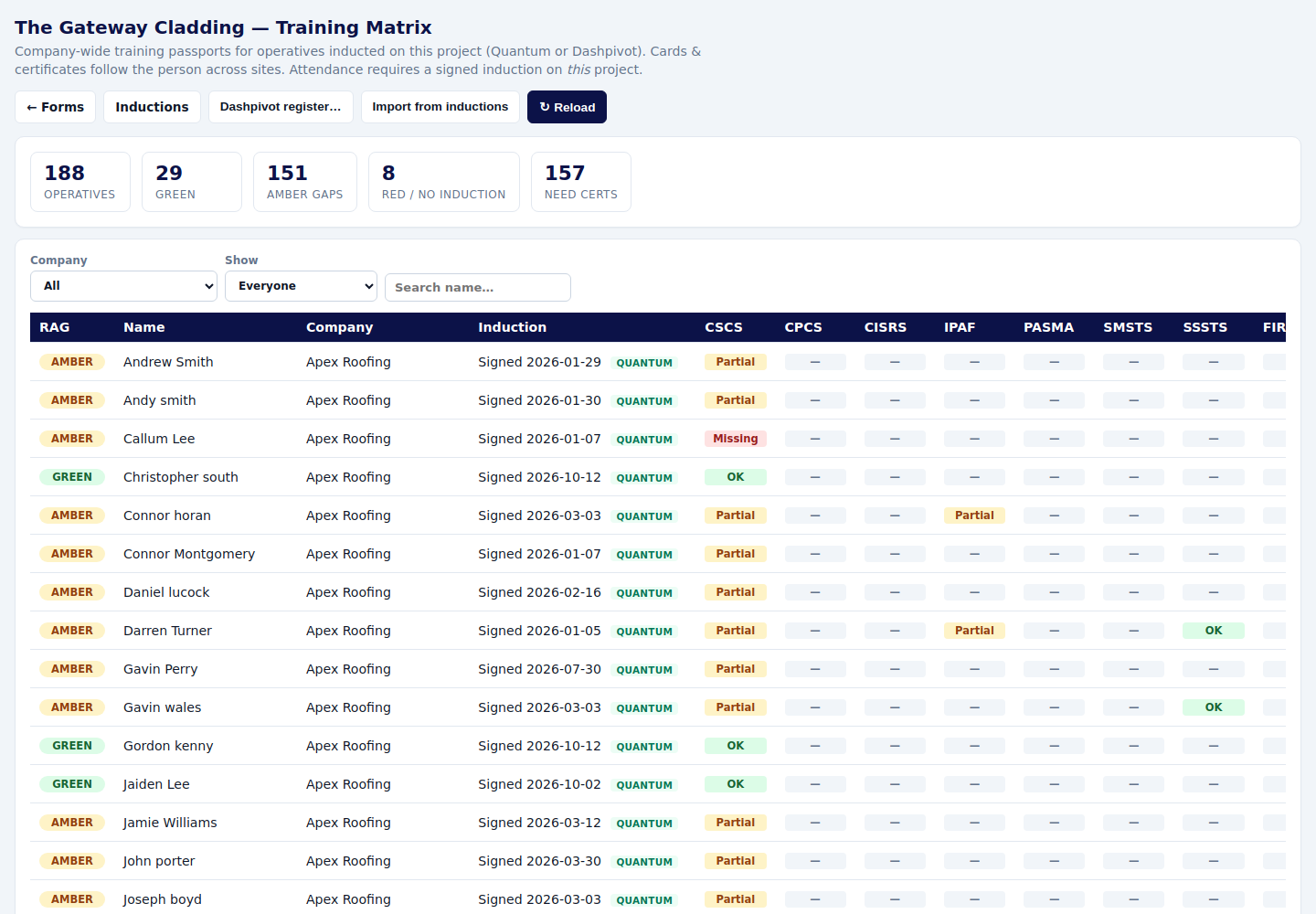
The training matrix is the quick check. Forms → SHEQ → Training Matrix. Find the person. If they are missing, or the name there is shorter than the attendance list, that is the induction to correct.
Refresh, then test
- Spreadsheets saved and closed in Site Documents.
- Forms → Refresh name lists. Stay on the page until it finishes.
- Operative closes the old QR page completely and scans again.
- Company button, then their full name, Signing in, Capture location, signature.
- On Gateway, if the induction message appears, fix the induction before they try again. Refreshing the lists does not create an induction.
Back to the forms guide · Quantum Facades · October 2026