Before you open a form
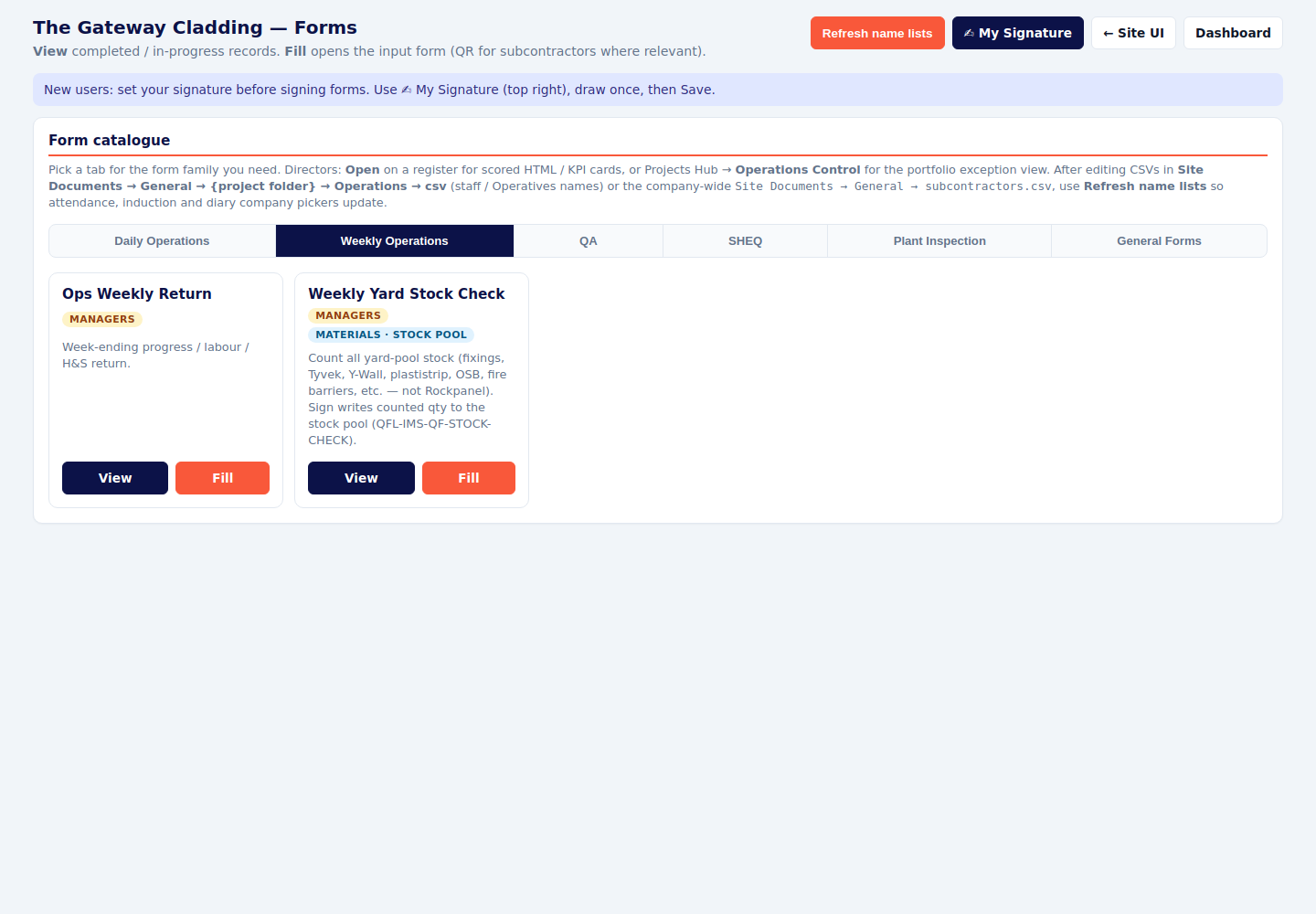
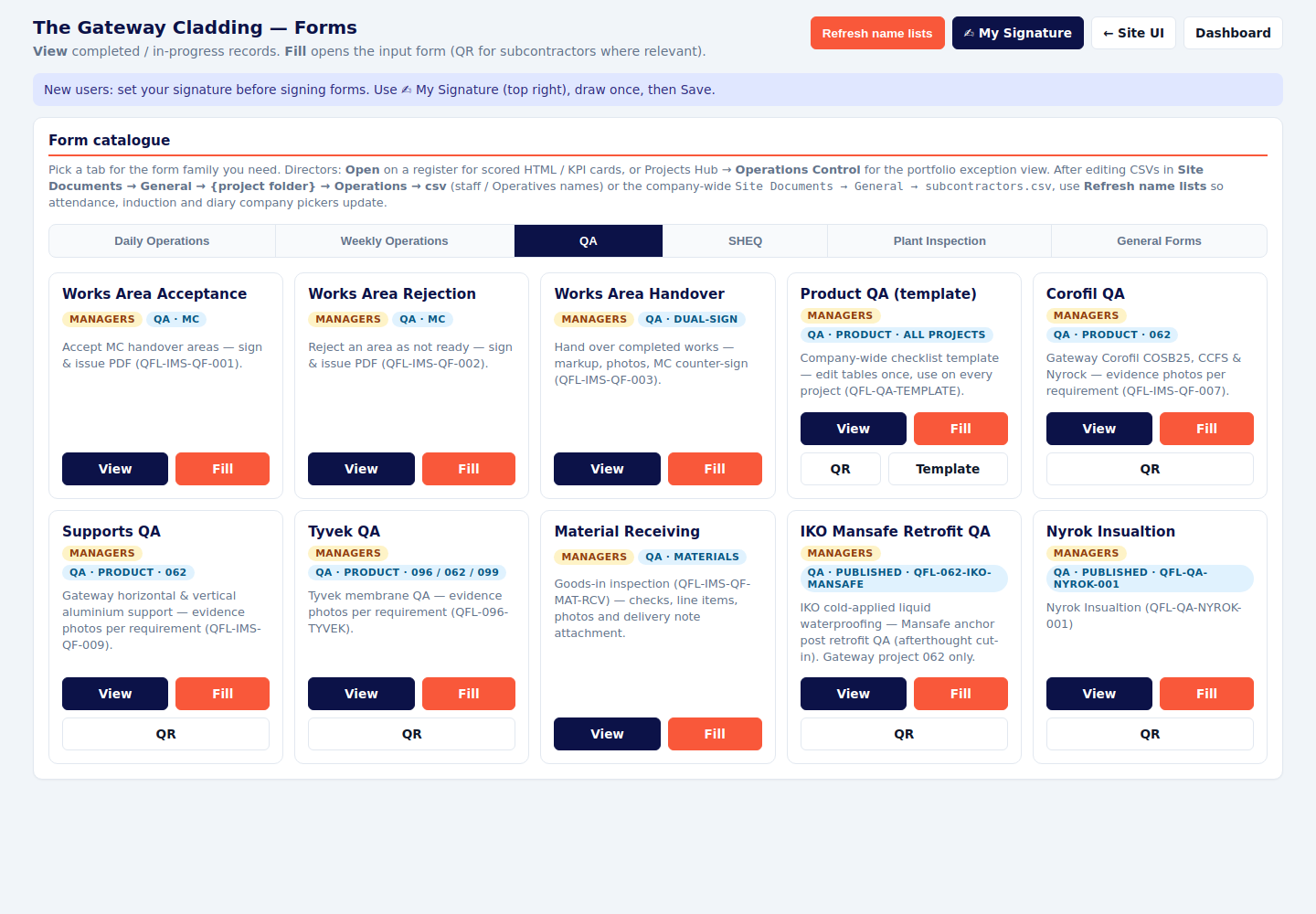
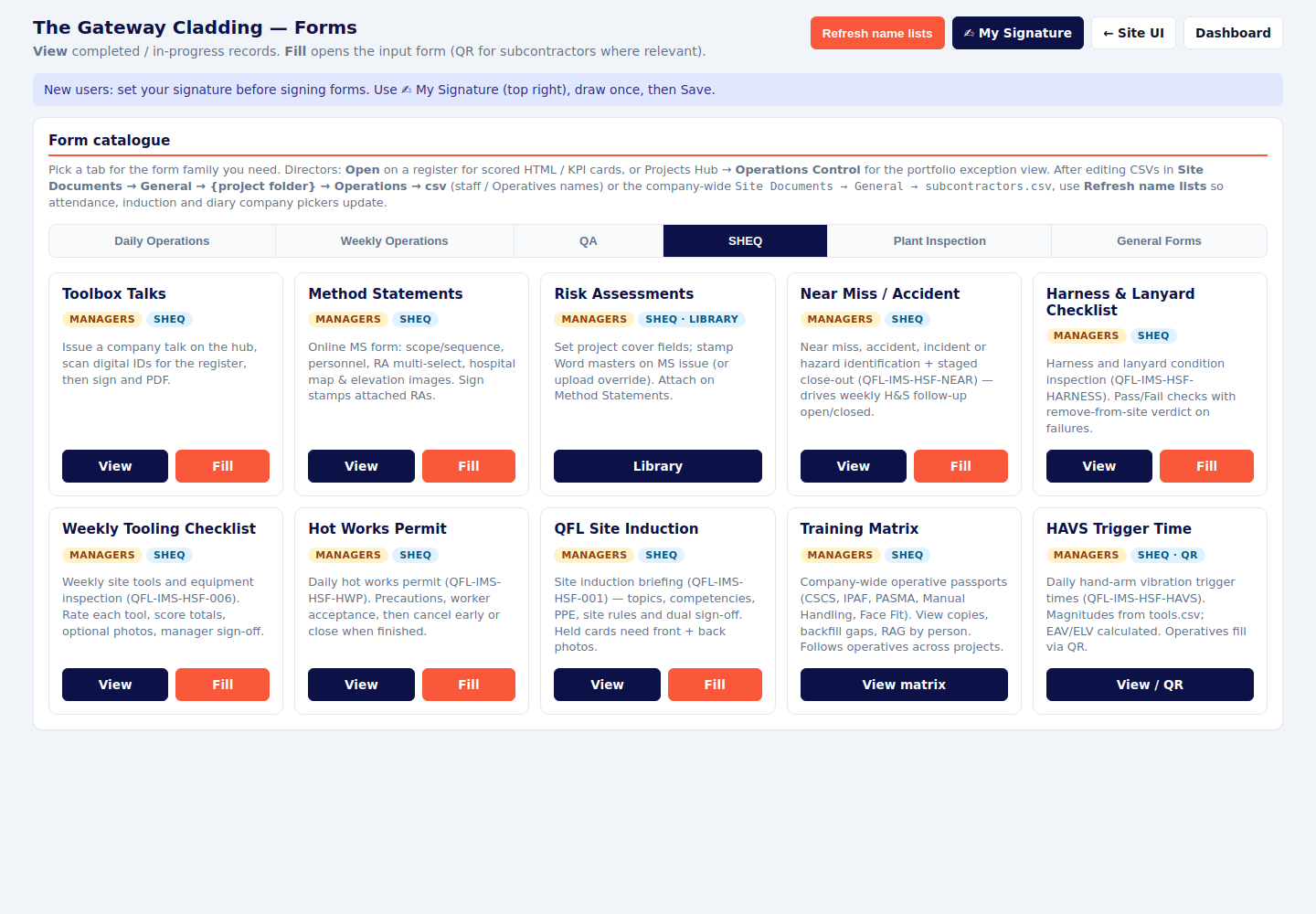
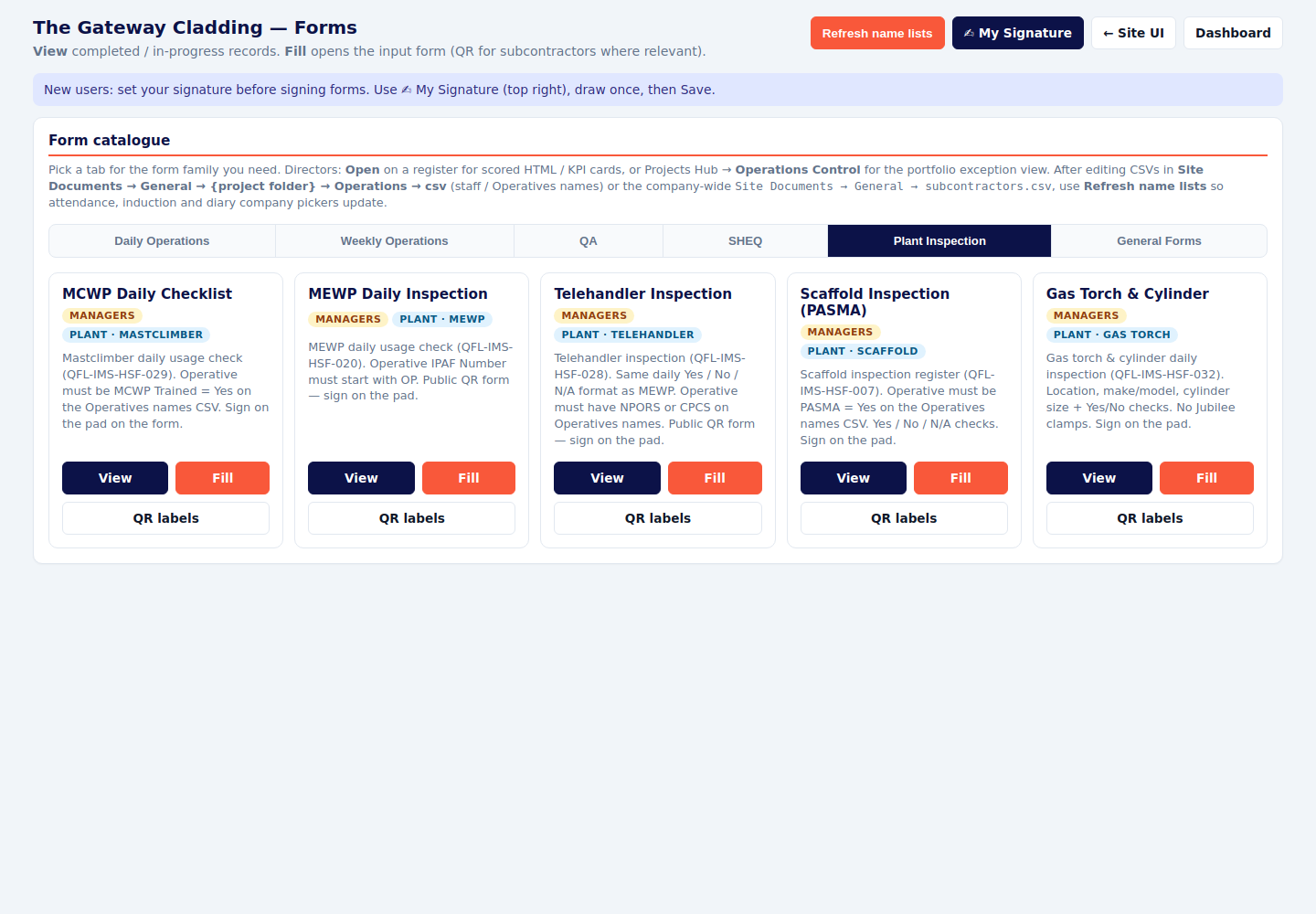
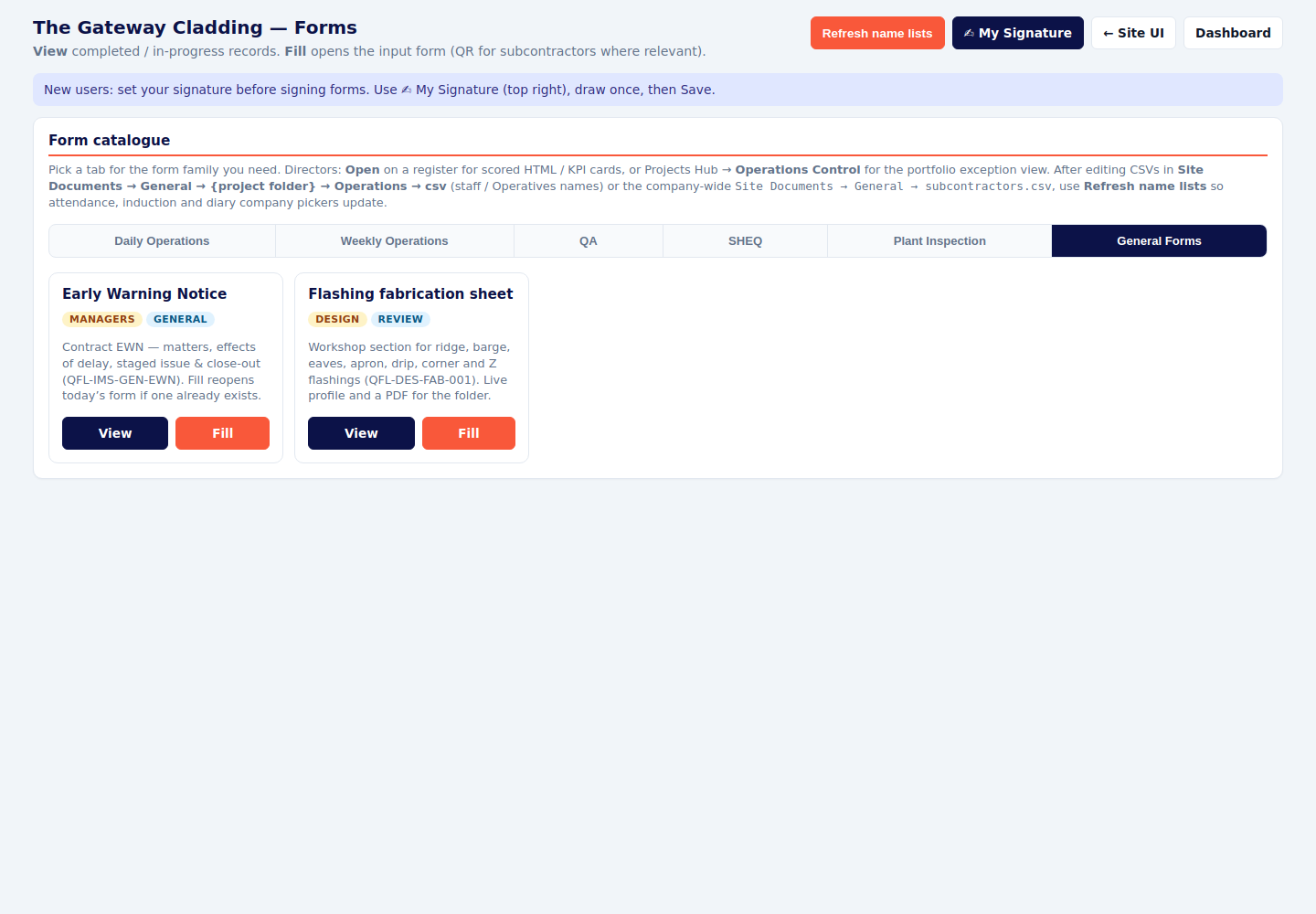
From the site menu open Forms. The page is split into six tabs: Daily Operations, Weekly Operations, QA, SHEQ, Plant Inspection and General Forms. View opens the register of forms already started or signed. Fill opens the blank form for today.
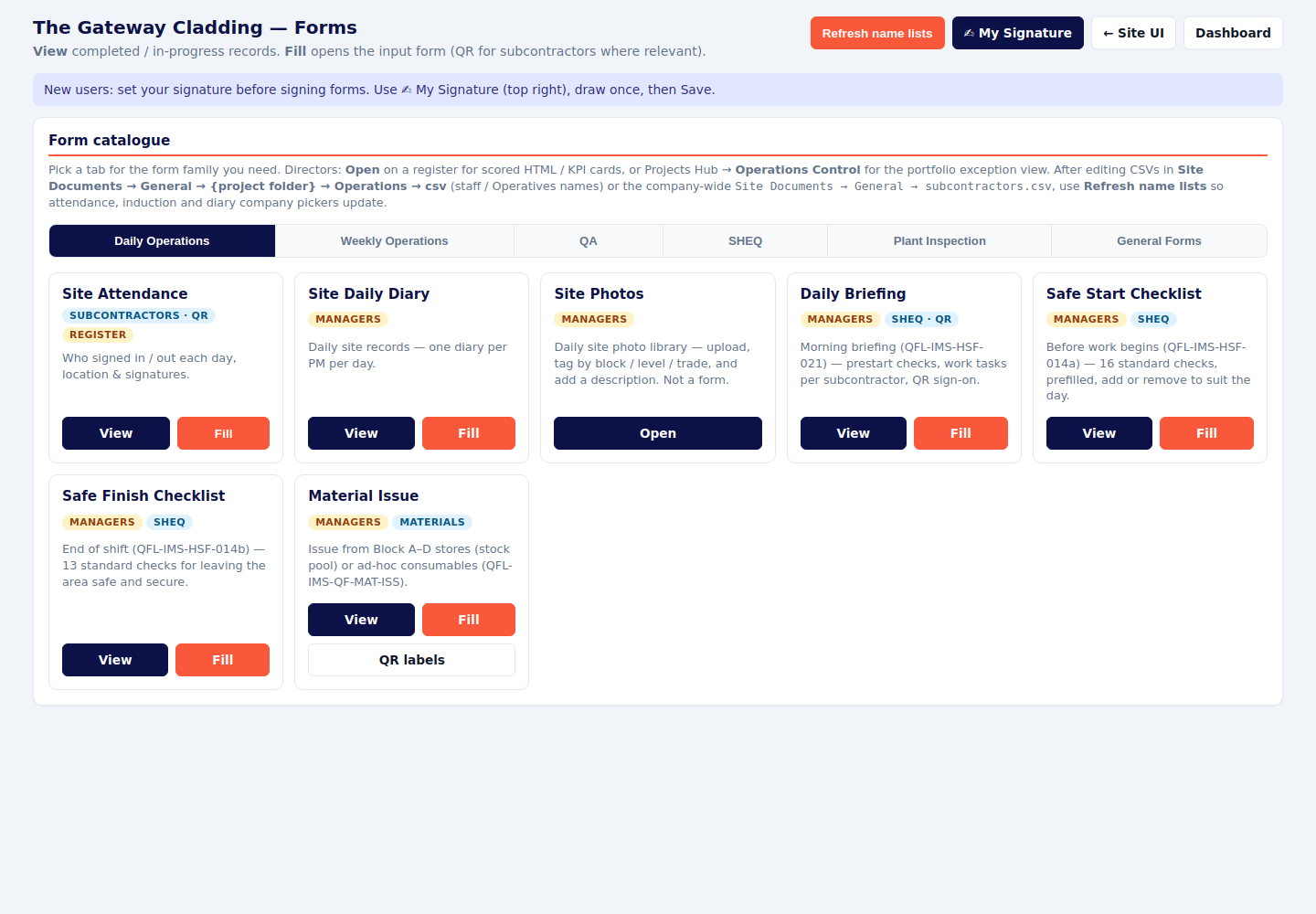
Almost every form uses the same buttons:
- New starts a fresh form for the date.
- Fill every box marked with a star. Answer every check. Add the photo or drawing the form asks for.
- Save draft keeps what you have typed so you can come back. A draft is unfinished. It is not the record.
- Sign & issue (or Sign & lock, Authorise, Sign report) is the step that finishes it. The PDF is the copy you keep and send.
- Register is where you find it later. PDF opens the issued copy.
If a name or company is missing from a dropdown, add it to the company list, then press Refresh name lists on the Forms page. Free typing is switched off on induction and attendance so the same person is not entered three different ways.
Some tiles only appear on the project that uses them. EPDM and Promat & Y-Wall are Parliament Place. Corofil, Supports, IKO Mansafe and Nyrok Insulation are Gateway. Tyvek is Parliament Place, Gateway and Urban One. If the tile is missing, you are on a project that does not use that form.
Daily operations
These are the forms that should exist for every working day. A blank day is a gap in the site record.
Site Attendance
Who signs in and out, and who is still on site.
- Managers use View to read the register, open the map, or download the PDF or the weekly Excel of hours.
- People on site sign themselves in and out from the public QR (Forms → Fill, or the printed QR). They sign out before they can sign in again.
- On Gateway, a person can sign in only after they have a signed induction on this project, and the name they type must match the induction (first name and surname).
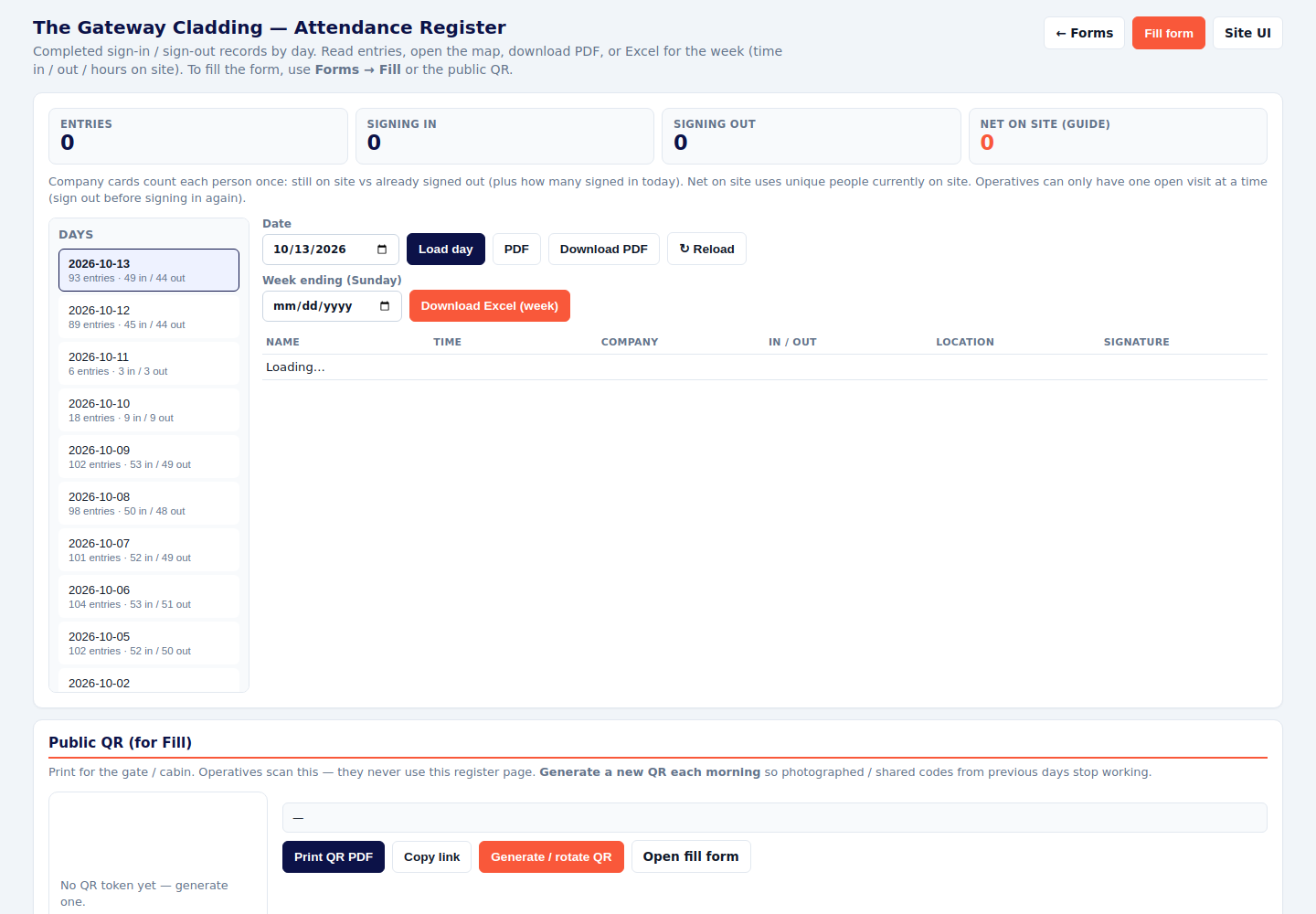
When someone cannot sign in — how to fix it. Company missing, name missing, wrong name on the induction, or the operative file not matching the company list.
Site Daily Diary
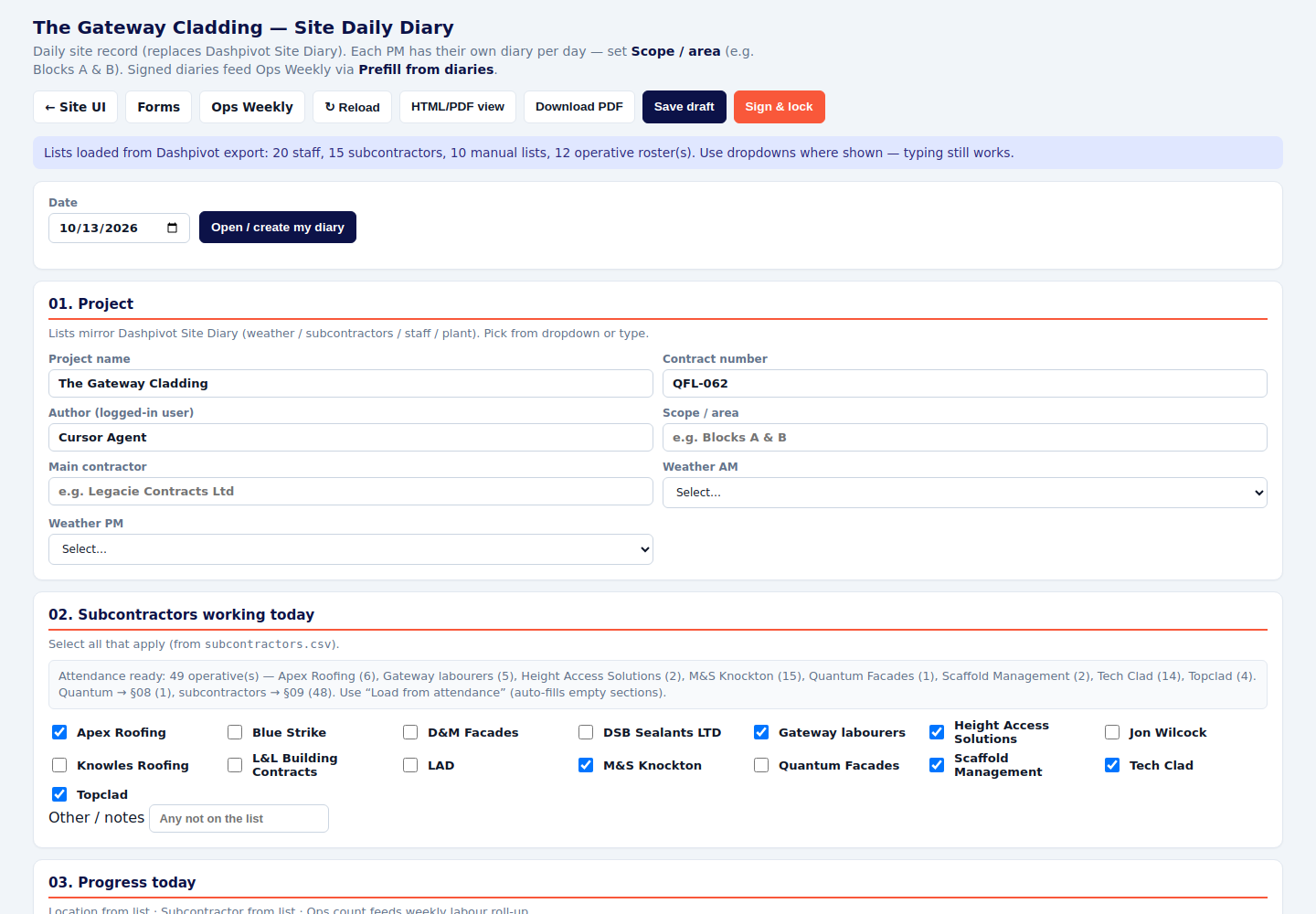
One diary per project manager, per day.
- Open Fill, pick the date, and press the button to open or create your diary.
- Set the scope or area, for example Blocks A and B.
- Fill weather for the morning and the afternoon. Tick the subcontractors, staff and plant that were on site. Add anything the lists do not cover.
- Save draft as you go. Sign and lock at the end of the day. A locked diary is the one the weekly return can use.
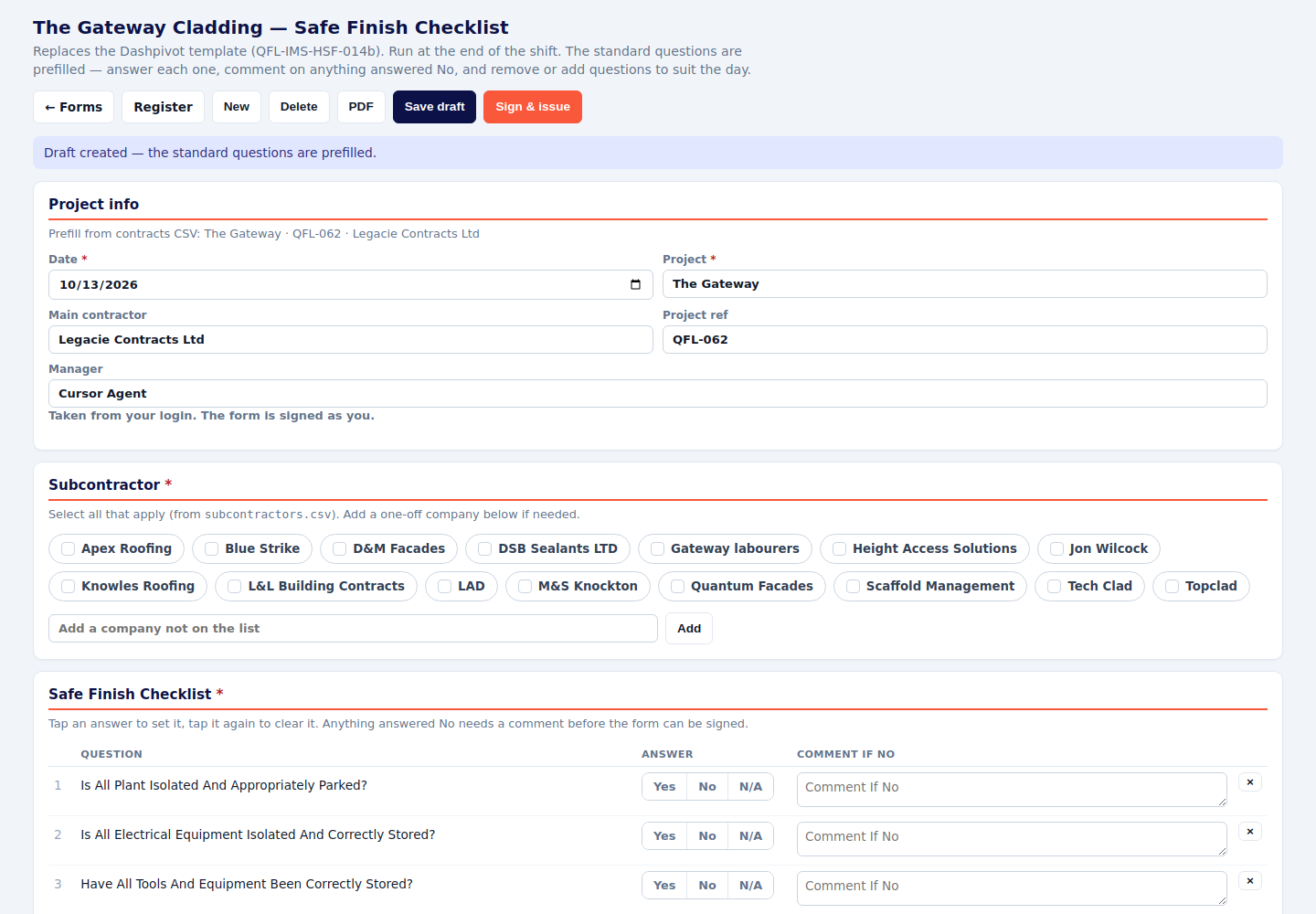
Site Photos
The photo library. This one is not a signed form.
- Open the library. Upload the day’s photos.
- Tag block, level, mast and trade, and write a short description.
- Use the filters when someone asks for a level or a mast. Manage tags if a new tag is needed.
- A Description is a Directors request and a MUST FILL. Persons outside the project need to understand what you are trying to show on the photo
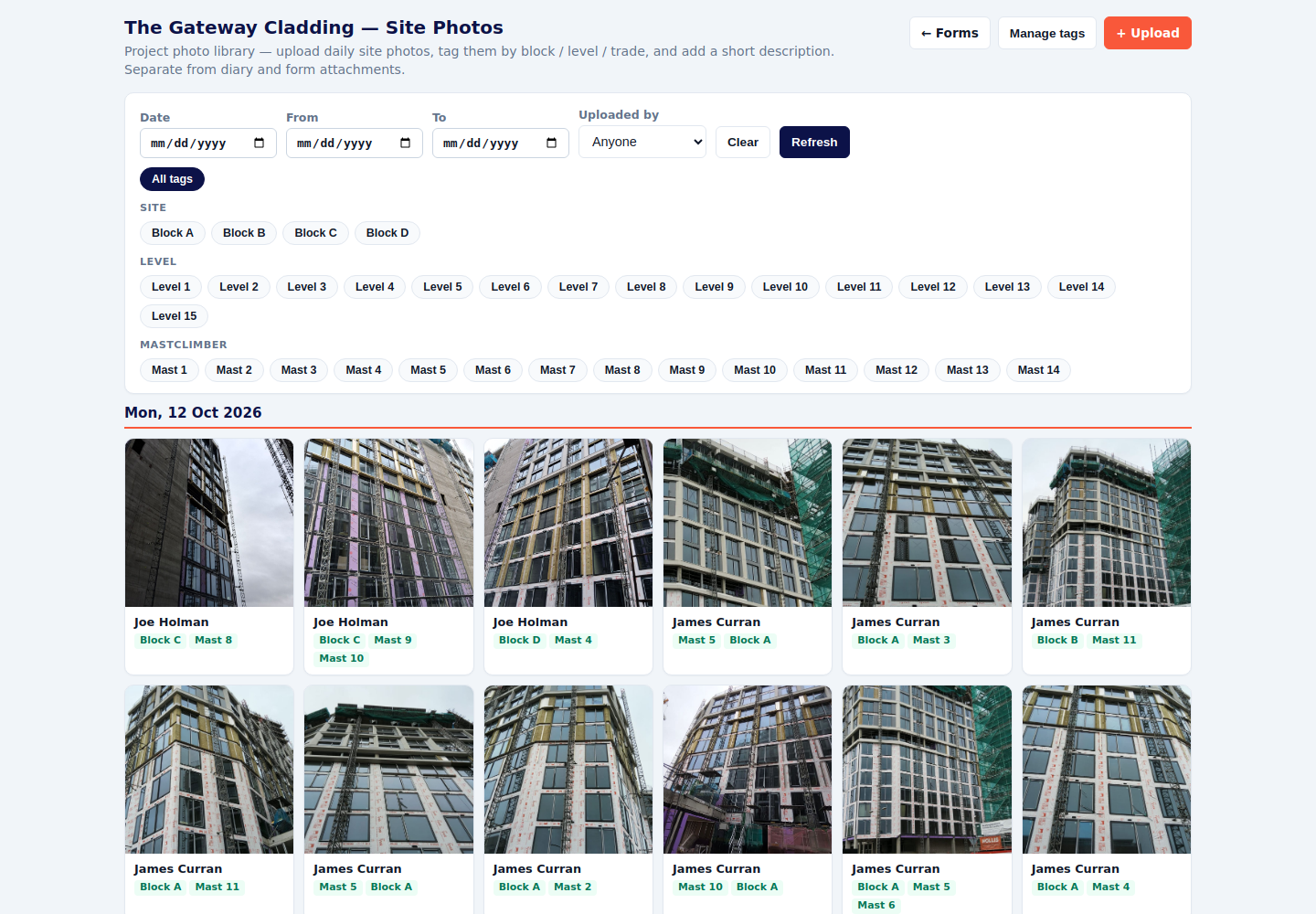
Daily Briefing QFL-IMS-HSF-021
- Pick the date, the manager running the brief, and the method statement. The method statement title and its risk assessments carry onto the briefing.
- Tick the prestart checks and the permits that apply today.
- Add the work tasks for each subcontractor.
- Scan each person’s digital ID for sign-on, then Sign & issue.
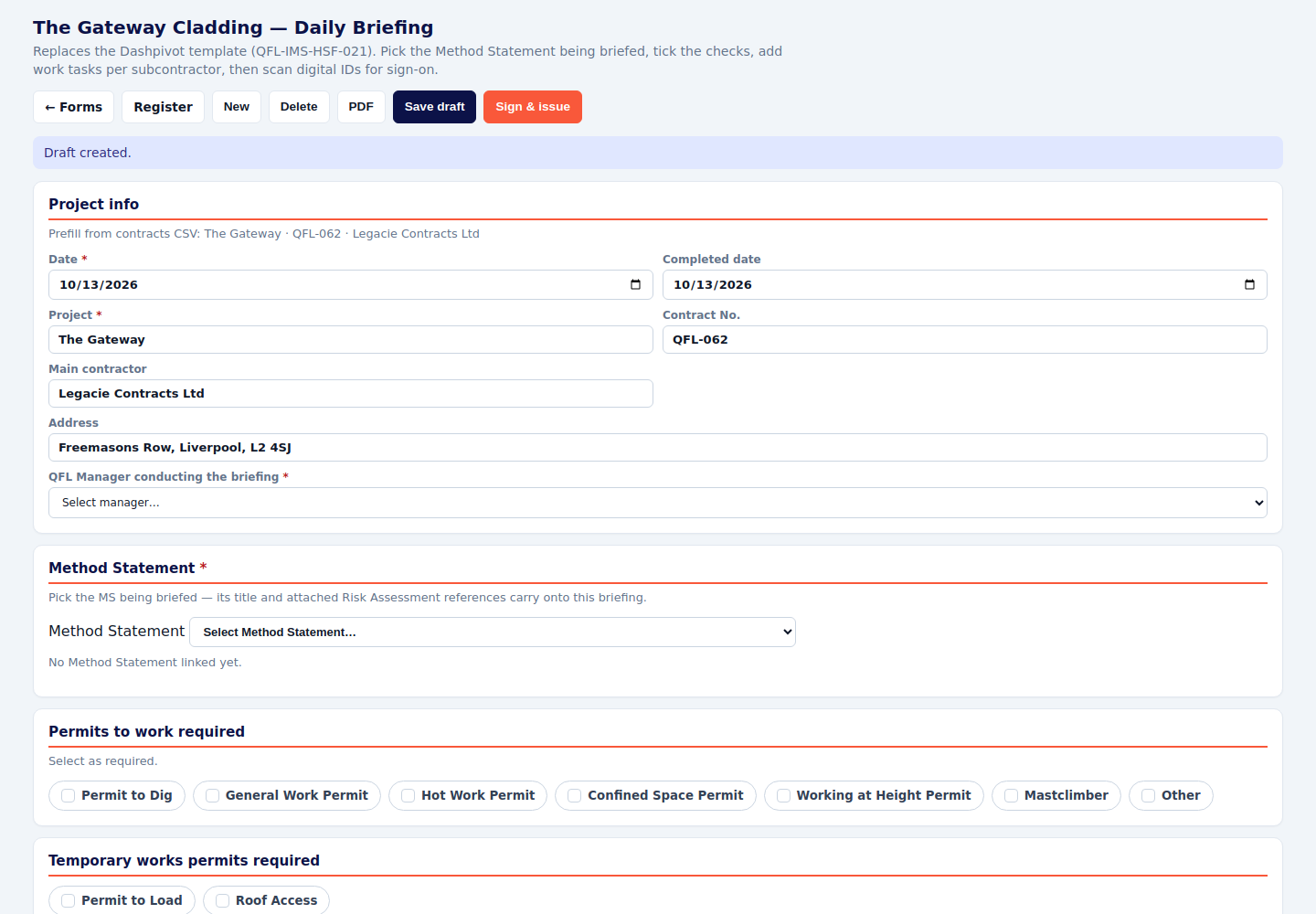
Safe Start QFL-IMS-HSF-014a
- Pick the subcontractors working in the area. Add a one-off company if they are not on the list.
- Answer every question. Write a comment on every No.
- Remove a question that does not apply today, or add one that does.
- Sign & issue before work starts in that area.
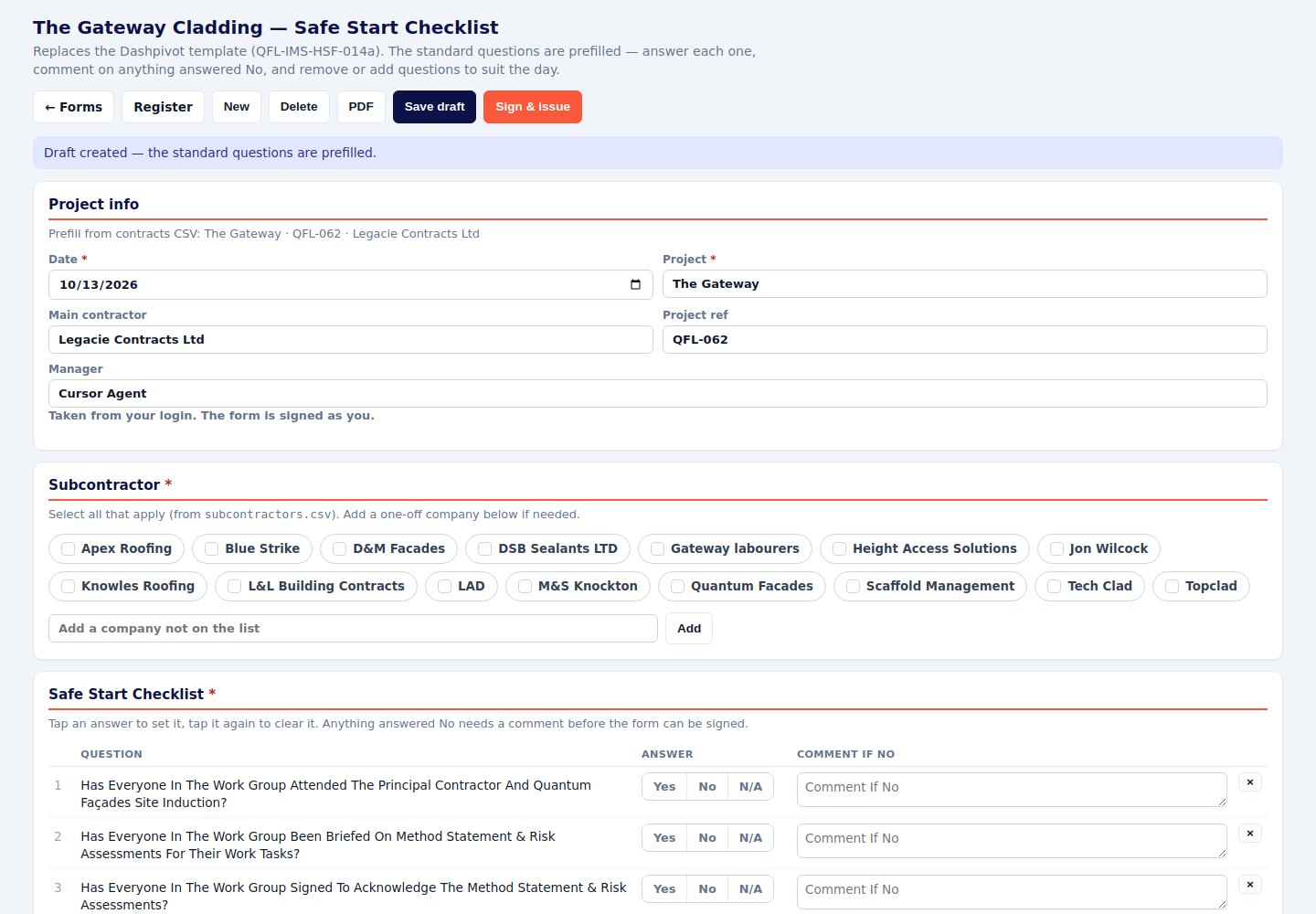
Safe Finish QFL-IMS-HSF-014b
- Run it at the end of the shift, for the same companies you started with.
- Answer every question. Comment on every No.
- Sign & issue before you leave the area.
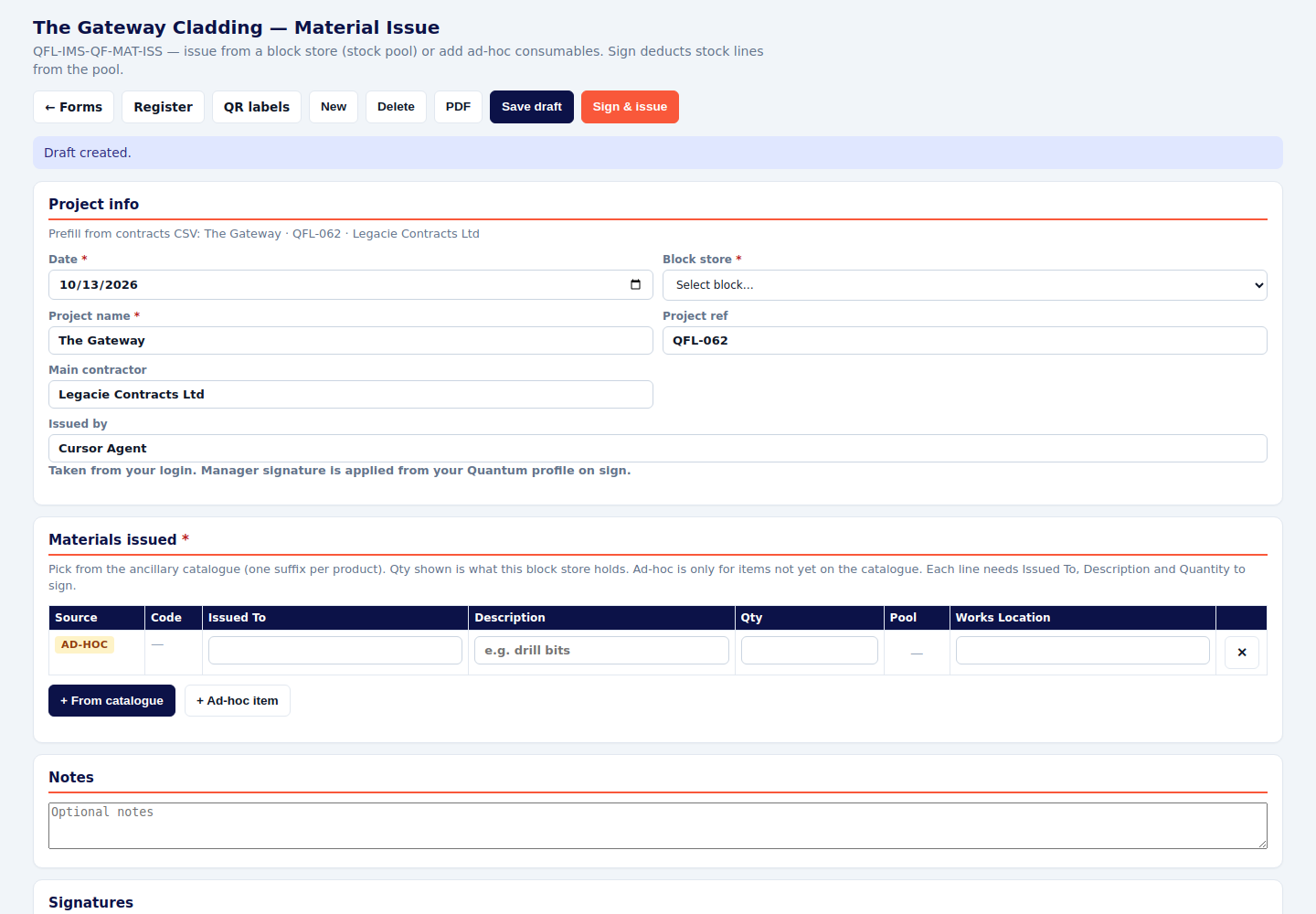
Material Issue QFL-IMS-QF-MAT-ISS
- Pick the block store (A, B, C or D).
- Add lines from the catalogue. The quantity shown is what that store holds. Use Ad-hoc only for something that is not on the catalogue yet.
- Each line needs who it was issued to, the description and the quantity.
- The person receiving signs, then you Sign & issue. That is the moment the stock comes off the pool.
Weekly operations
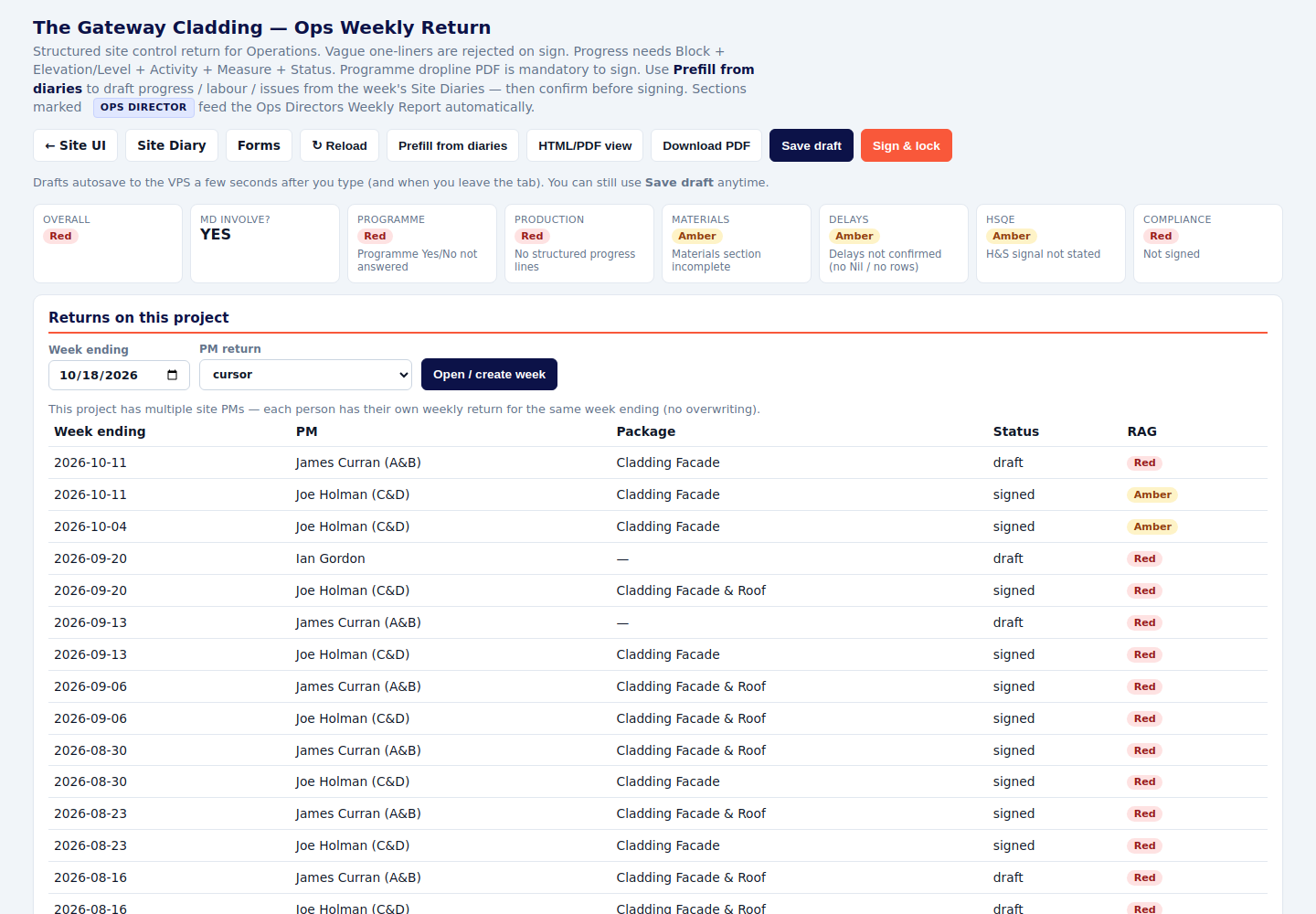
Ops Weekly Return
- Open the week. Press Prefill from diaries to pull progress, labour and issues from the signed diaries. Read what it brought in and correct it.
- Every progress line needs a block, an elevation or level, the activity, a measure, and a status.
- Attach the programme dropline PDF. You cannot sign without it.
- Answer programme, materials, delays and HSQE. Confirm delays, even if the answer is nil.
- Save draft through the week. Sign & lock when the week is complete.
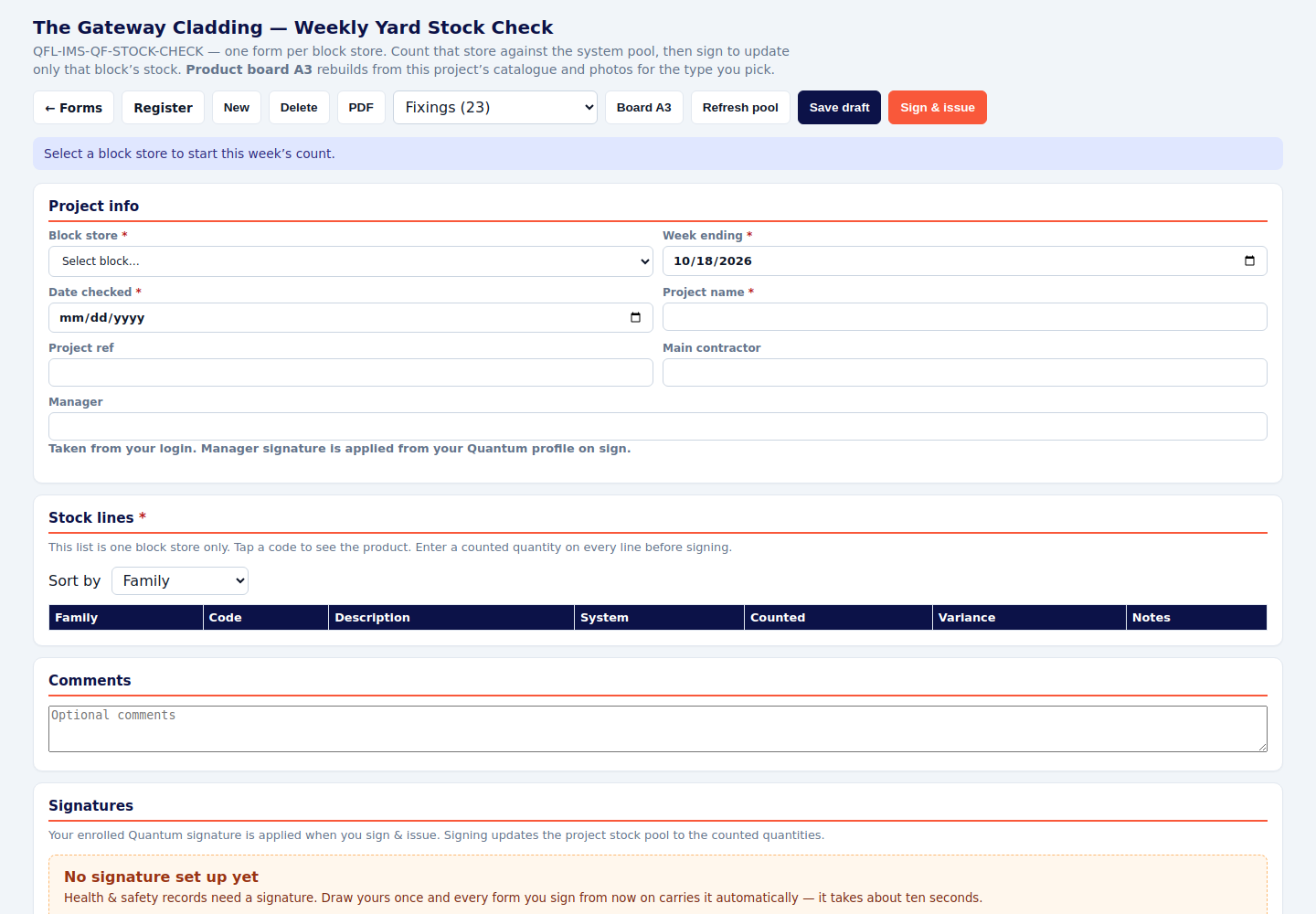
Weekly Yard Stock Check QFL-IMS-QF-STOCK-CHECK
- Pick the block store and the week ending. Start a new form for that block.
- Walk the store. Enter a counted quantity on every line, including zero.
- Use the product tabs (consumables, fire barriers, fixings, membrane, metal, Nyrock, staples, Tyvek) so nothing is skipped. This count is the yard pool, not Rockpanel.
- Sign & issue. That updates this block only.
Quality forms
These are the records that an area was accepted, rejected, handed over, or installed to the checklist. A photo on its own is not the QA record. The form is.
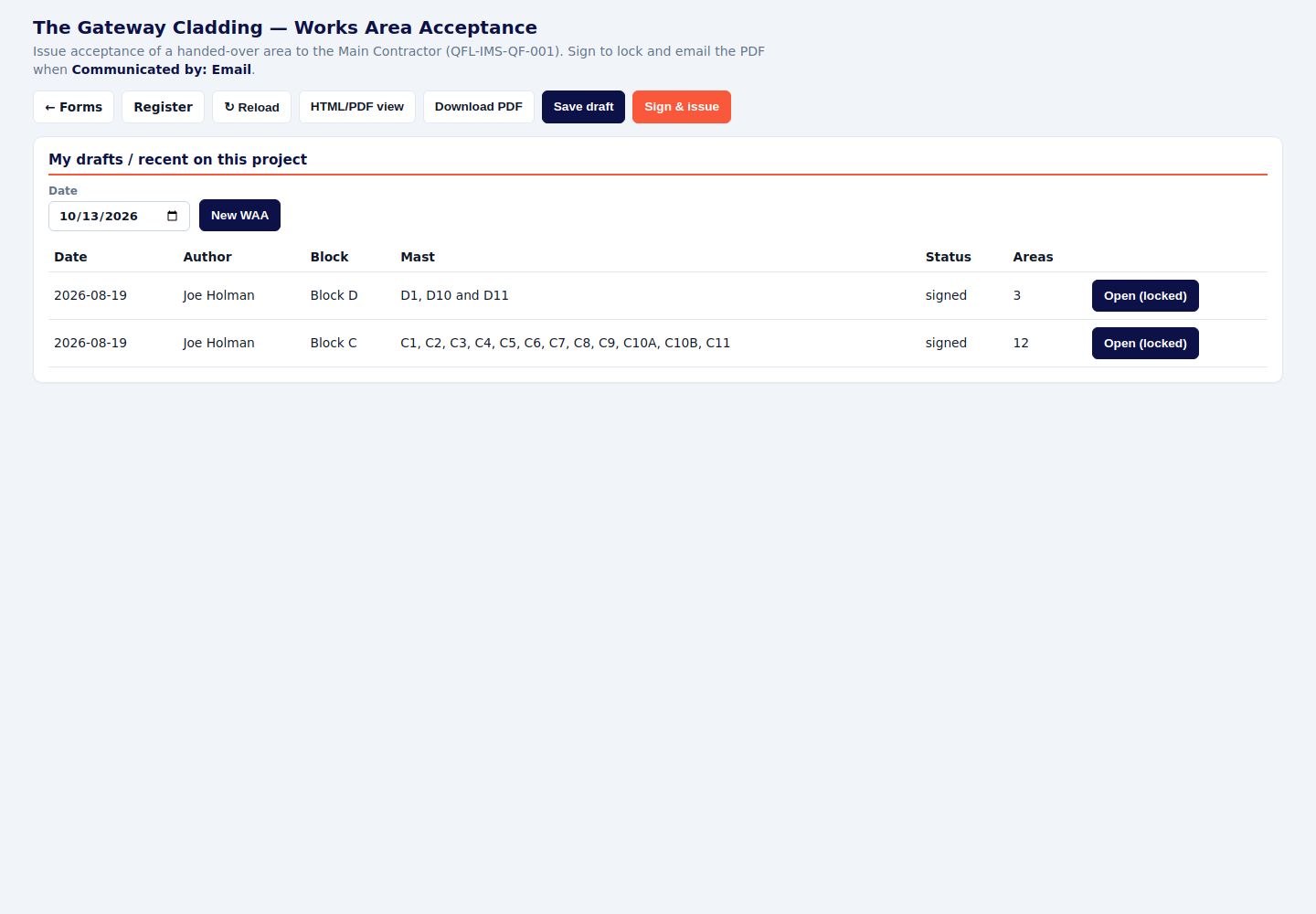
Works Area Acceptance QFL-IMS-QF-001
- Press New WAA. Name the block and the areas or masts.
- Complete the acceptance details.
- Sign & issue. If you set Communicated by to Email, the PDF is emailed as part of issuing.
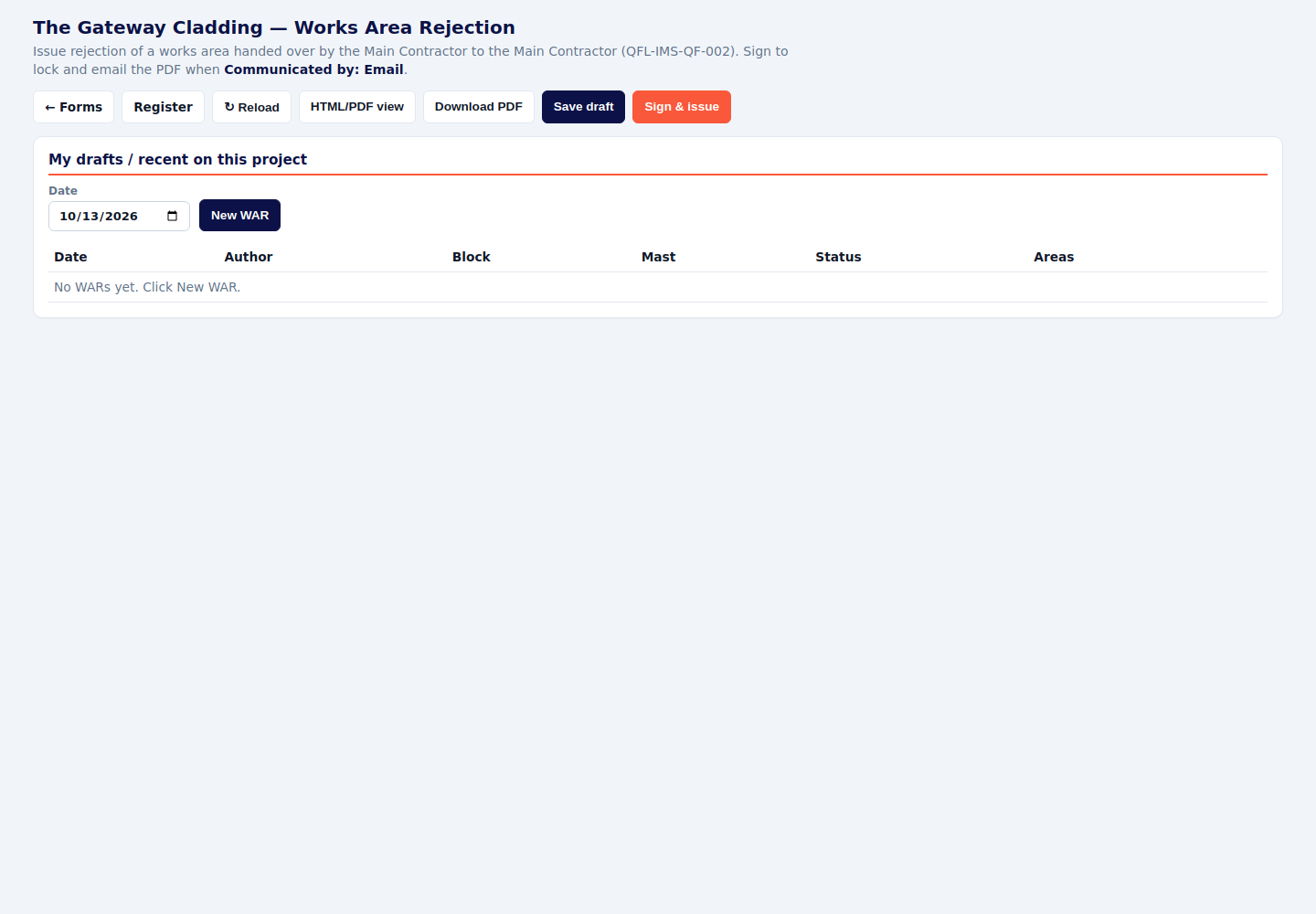
Works Area Rejection QFL-IMS-QF-002
- Press New WAR. Name the block and the areas.
- Write why the area is rejected, clearly enough that the main contractor can act on it.
- Sign & issue. Email works the same way as acceptance.
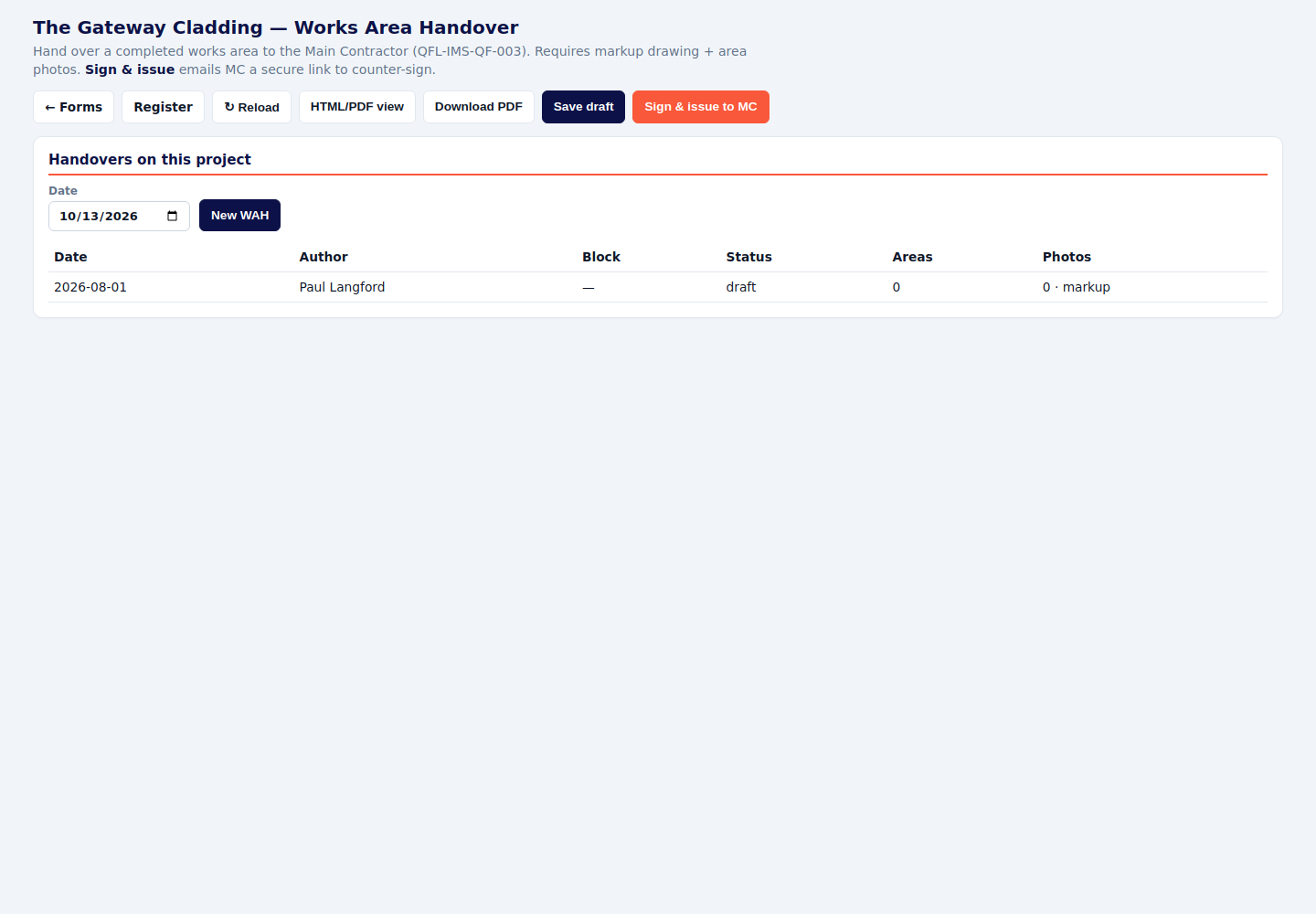
Works Area Handover QFL-IMS-QF-003
- Press New WAH. Set the block and the areas.
- Attach the markup and the area photos. The form will not stand as a handover without them.
- Sign & issue to MC. They receive a link to counter-sign.
- Watch the register until their signature is back. A handover with no counter-sign is still open.
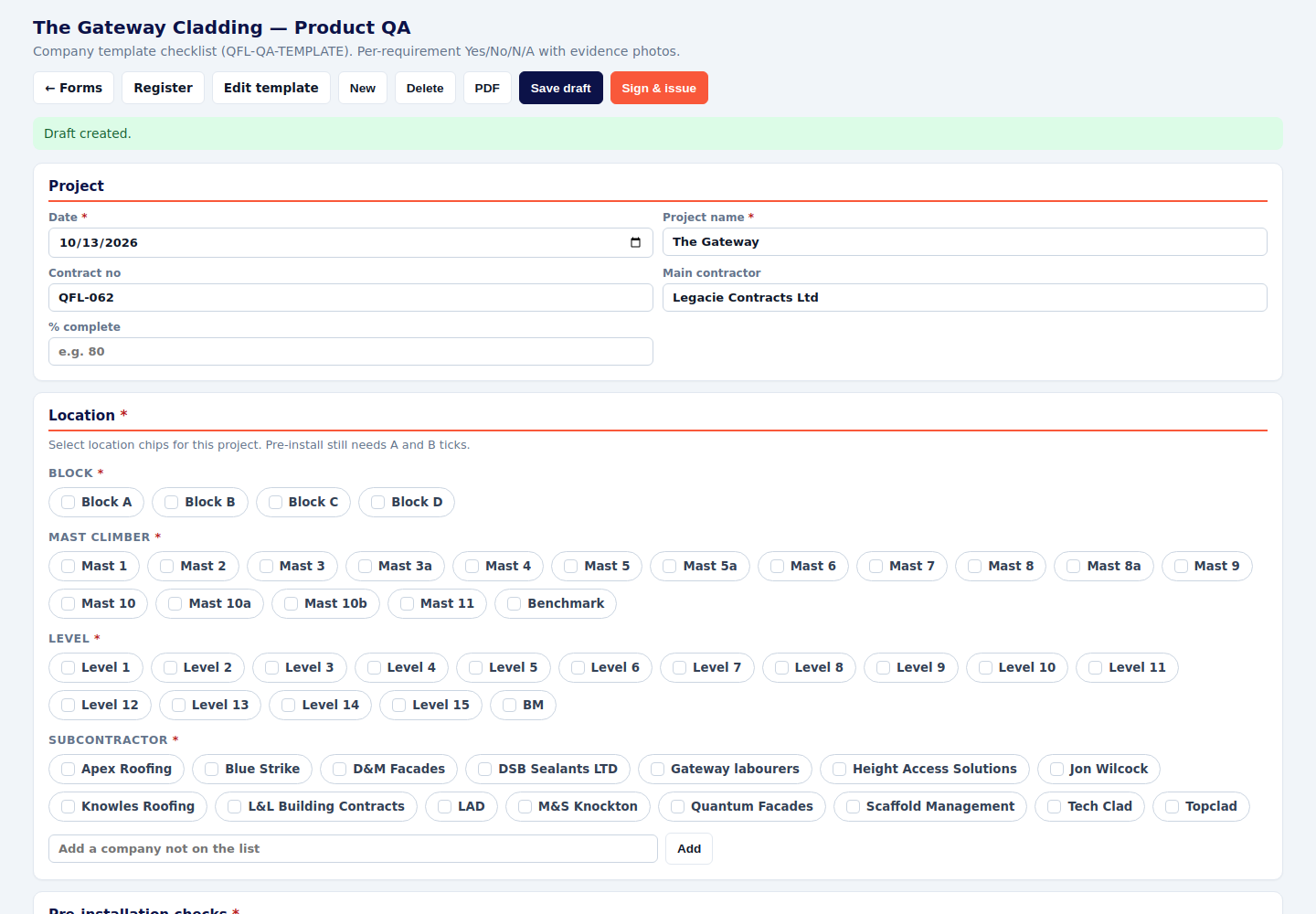
Product QA QFL-QA-TEMPLATE
- Pick the date and the location chips: block, mast, level and subcontractor. Pre-install still needs both A and B ticked.
- Answer every line. Add the evidence photo on the lines that require one.
- Sign & issue. The template itself is edited once, from the Template button, and then used everywhere.
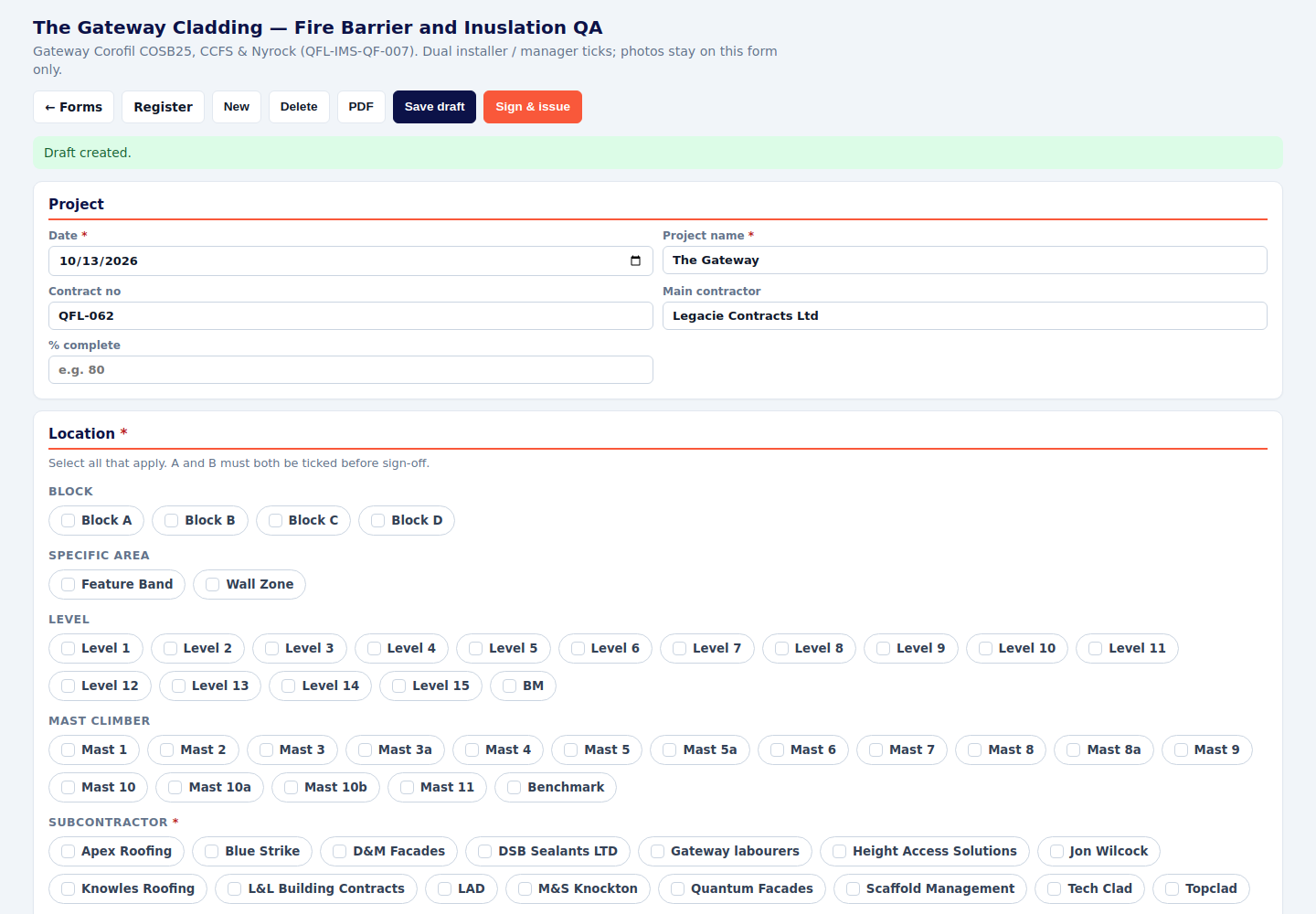
Fire barrier and insulation (Corofil) QFL-IMS-QF-007
- Tick block, area, level, mast and subcontractor. A and B both have to be ticked before sign-off.
- Work through the checks. A is the installer, B is the manager. Comment where a line needs it, and add the photo the line asks for.
- Sign & issue.
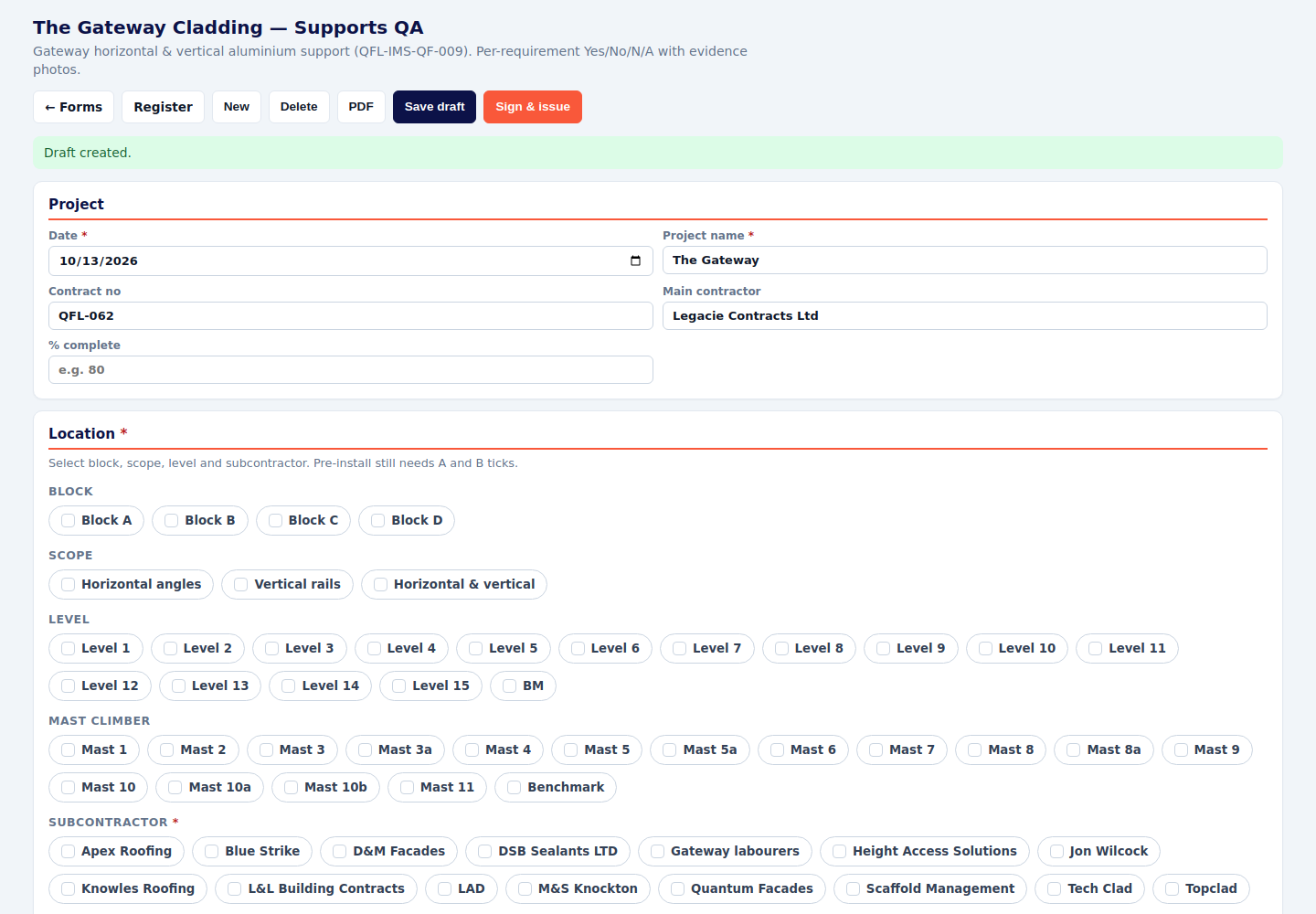
Supports QA QFL-IMS-QF-009
- Pick block, scope (horizontal, vertical, or both), level, mast and subcontractor.
- Answer Yes, No or N/A on every line and add the evidence photos.
- Pre-install still needs A and B. Then Sign & issue.
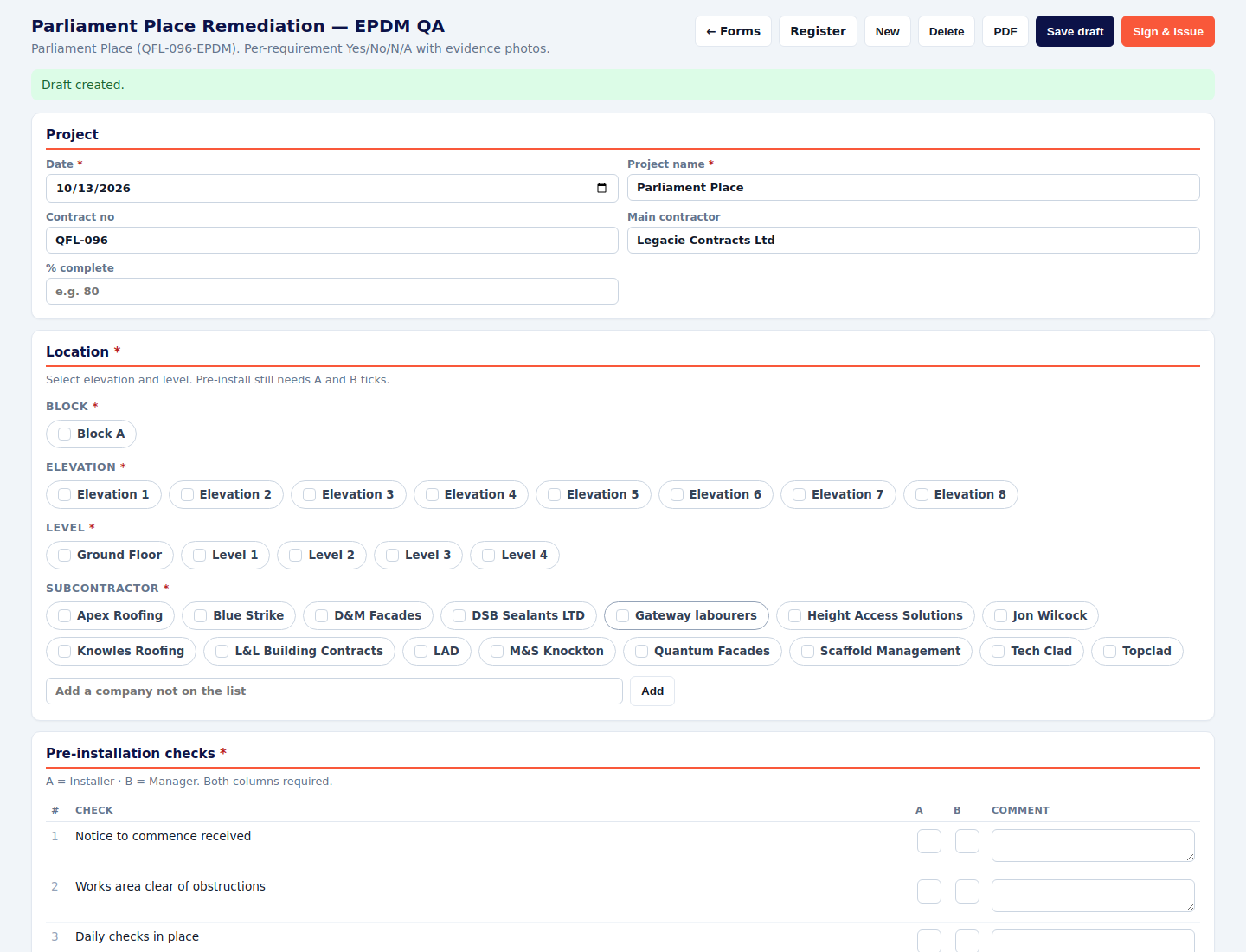
EPDM QA QFL-096-EPDM
- Open it on Parliament Place. Pick block, elevation, level and subcontractor.
- Complete pre-installation (A installer, B manager) and the rest of the checks, with photos.
- Sign & issue.
Promat & Y-Wall QA QFL-096-PROMAT-YWALL
- Same steps as EPDM: location, both sign-off columns, photos on the lines that need them, then Sign & issue.
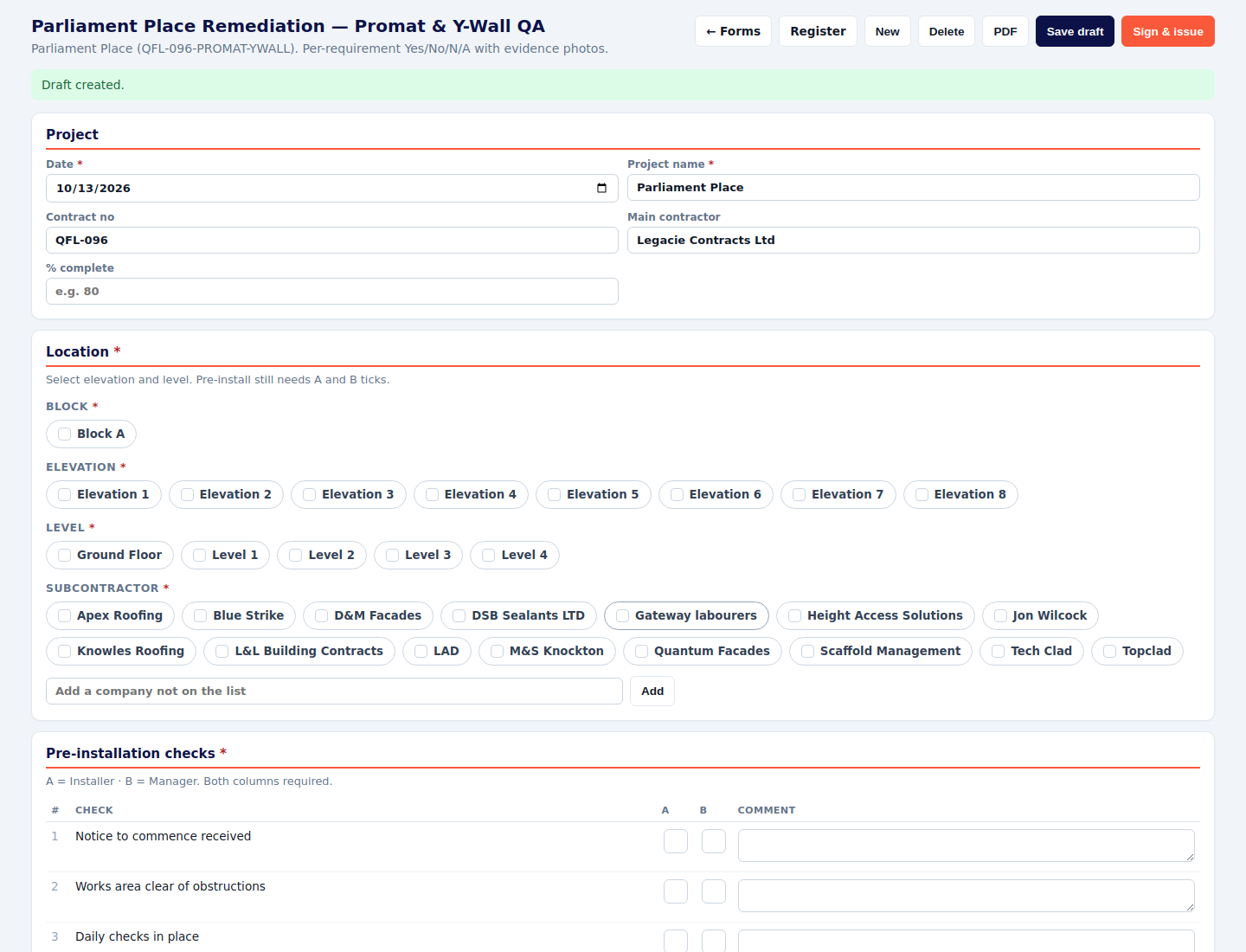
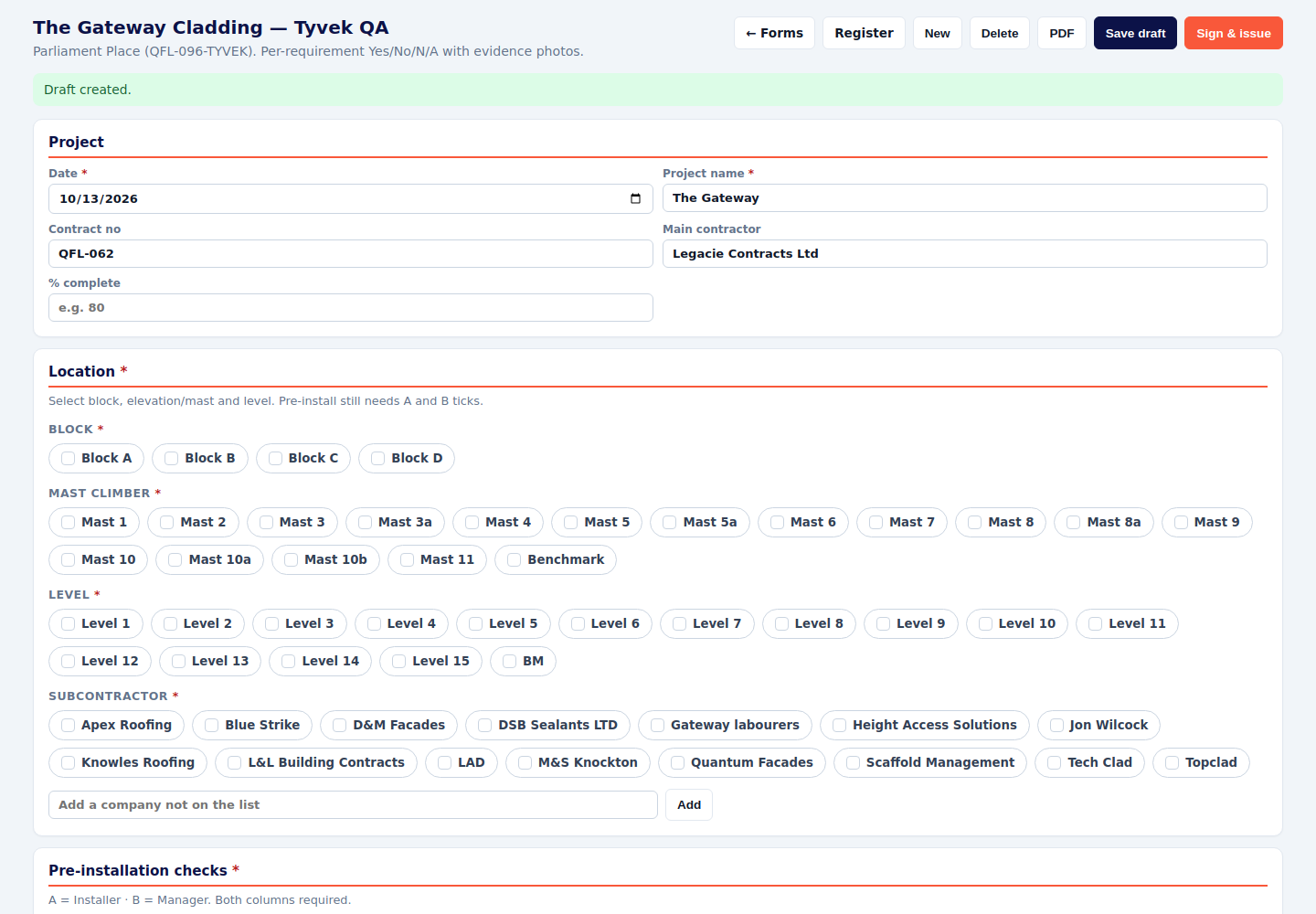
Tyvek QA QFL-096-TYVEK
- Pick block, mast and level, and the subcontractor.
- Answer every line and attach the evidence photos. Pre-install still needs A and B.
- Sign & issue.
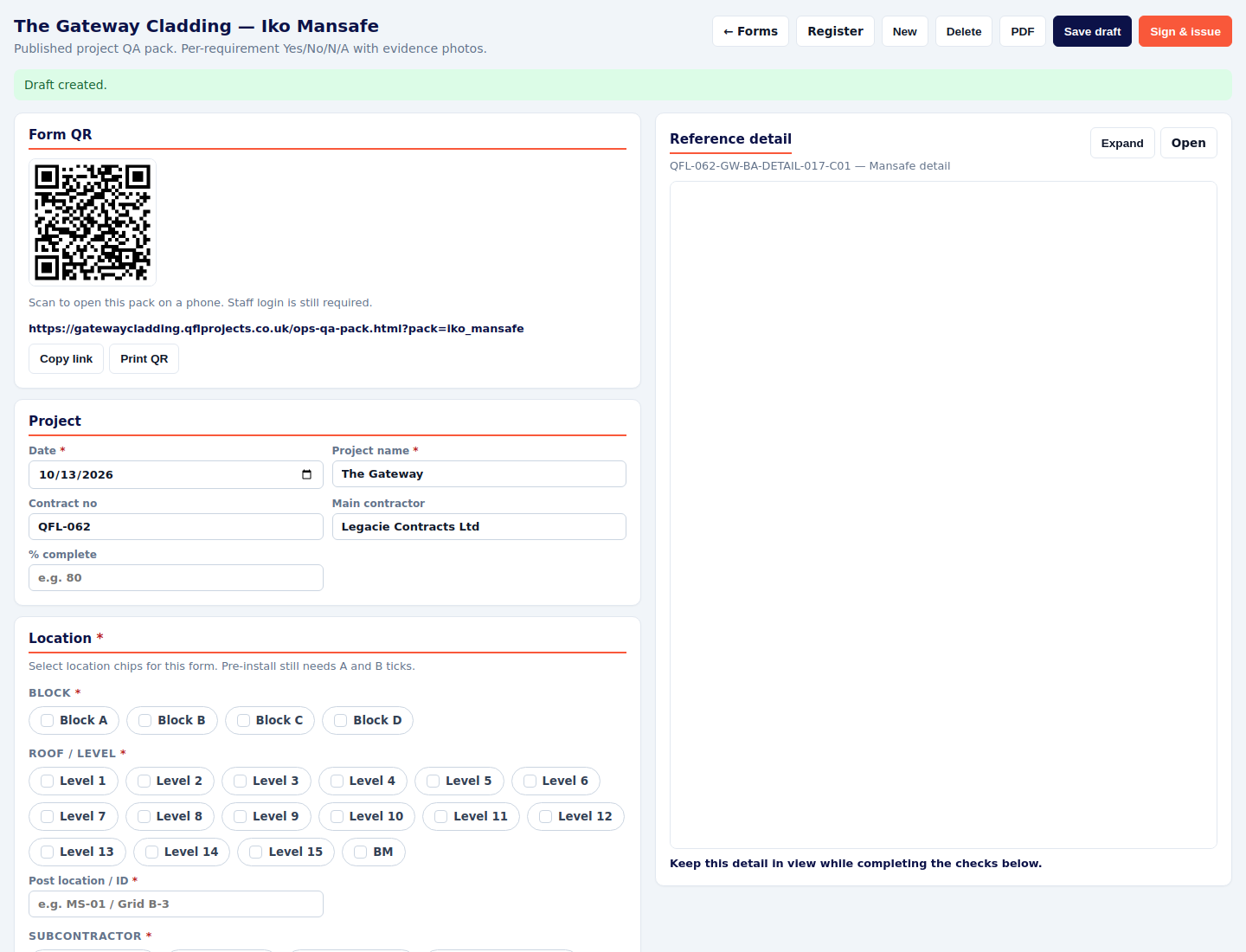
IKO Mansafe retrofit QFL-062-IKO-MANSAFE
- Pick block, roof or level, and subcontractor. Add the post location or ID.
- Keep the reference detail open while you answer the checks. Add photos where a line asks for them.
- The QR on the form opens the same pack on a phone. Staff still log in. Sign & issue when the checks are done.
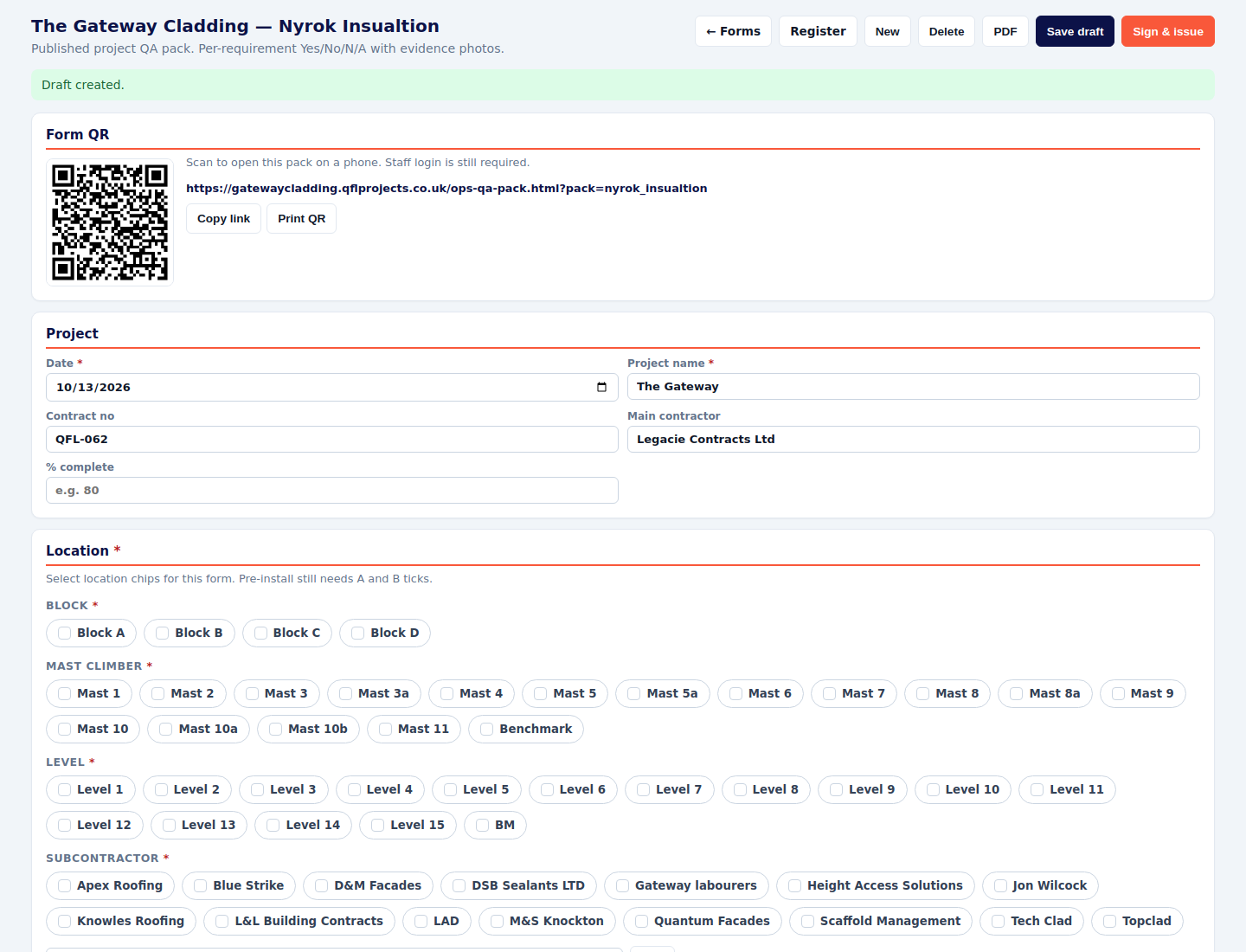
Nyrok Insulation QFL-QA-NYROK-001
- Pick block, mast, level and subcontractor.
- Complete the checks, including A and B on pre-install, and the photos.
- Sign & issue. The QR opens this pack on a phone after login.
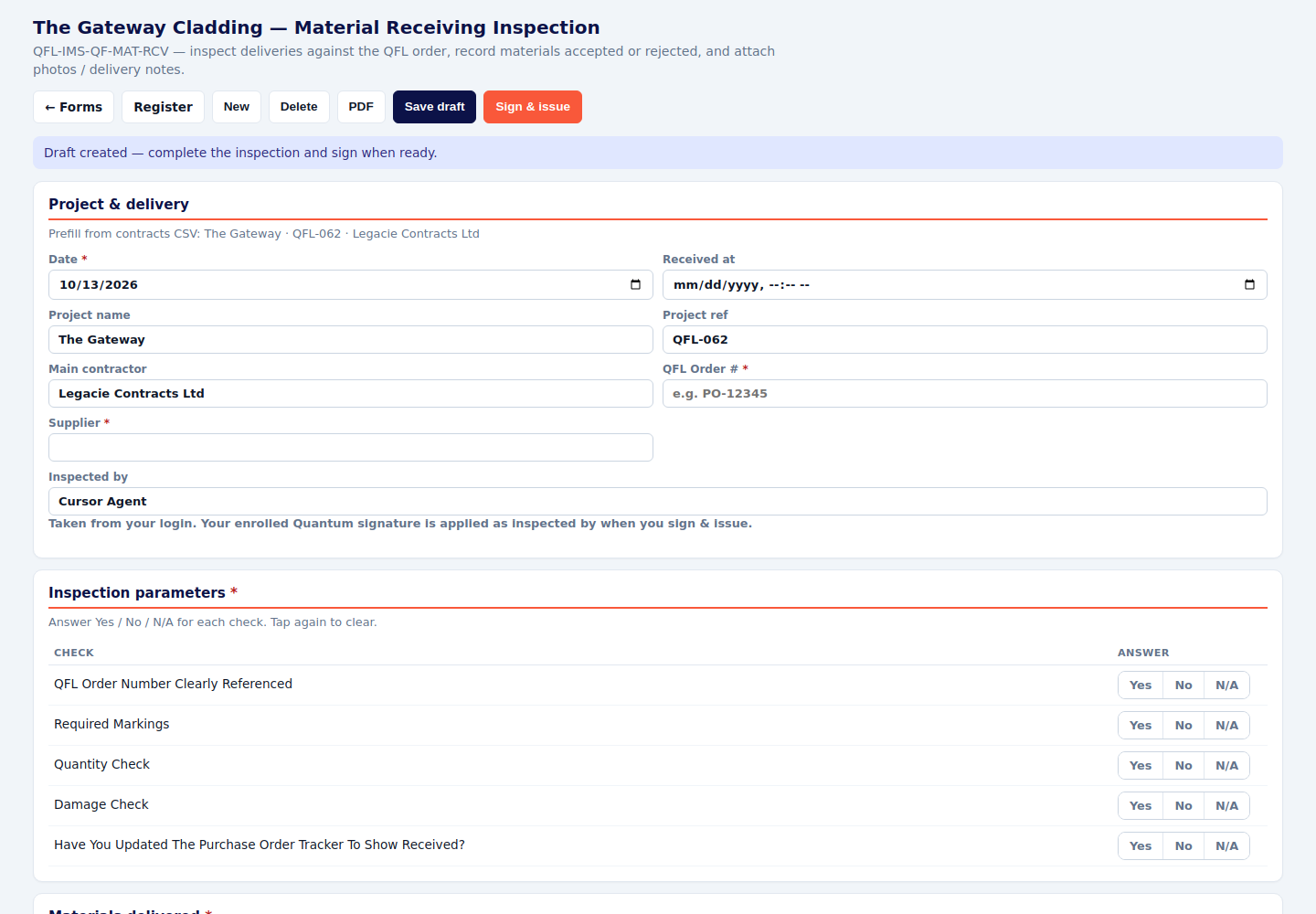
Material Receiving QFL-IMS-QF-MAT-RCV
- Enter the Quantum order number and the supplier. Record where it was received.
- Answer Yes, No or N/A for each check: order number on the delivery, markings, quantity, damage, and whether the order tracker has been updated.
- Add the line items, photos and the delivery note.
- Sign & issue. Your signature is applied as the person who inspected it.
SHEQ forms
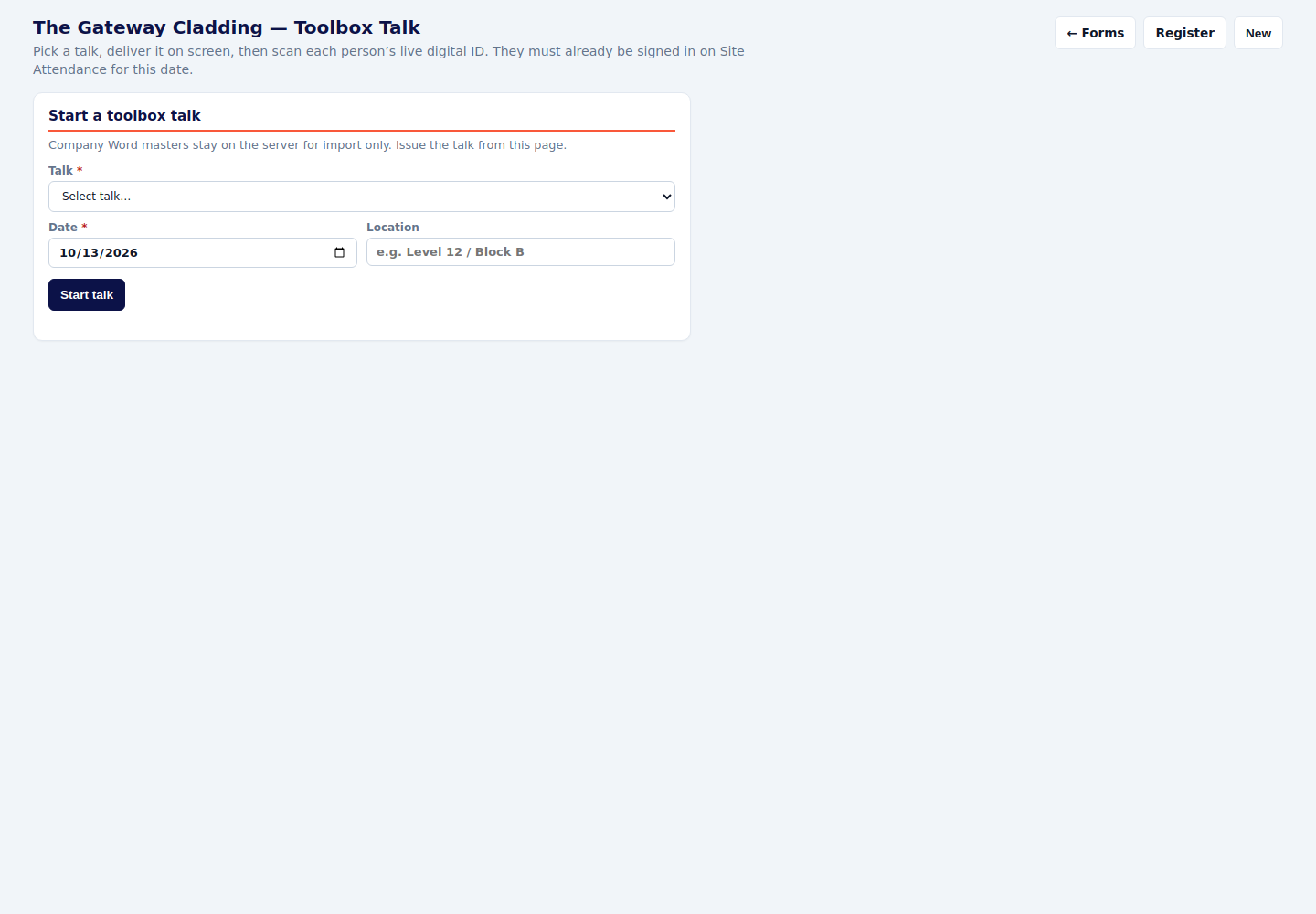
Toolbox talks
- Pick the talk from the company list, the date and the location. Press Start talk.
- Deliver it on screen.
- Scan each person’s live digital ID. If the scan refuses them, they are not on today’s attendance. Sign them in first, then scan again.
- Sign and issue the PDF.
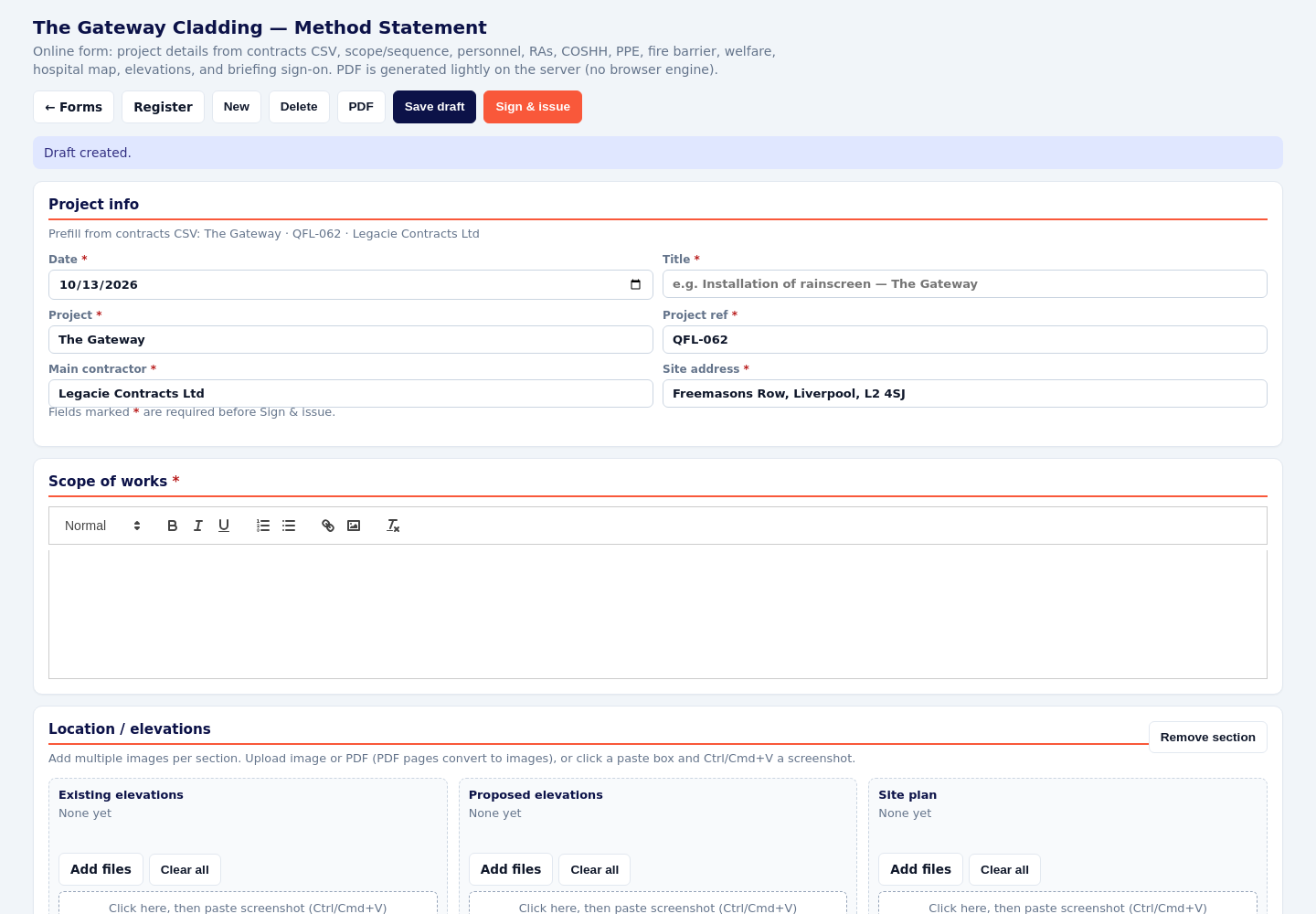
Method statements
- Fill the starred project fields, then the scope of works. Add a section per location.
- Upload elevation images, or click the paste box and paste a screenshot.
- Tick the people, the risk assessments, COSHH and PPE that apply.
- Sign & issue. Then pick this method statement on the daily briefing.
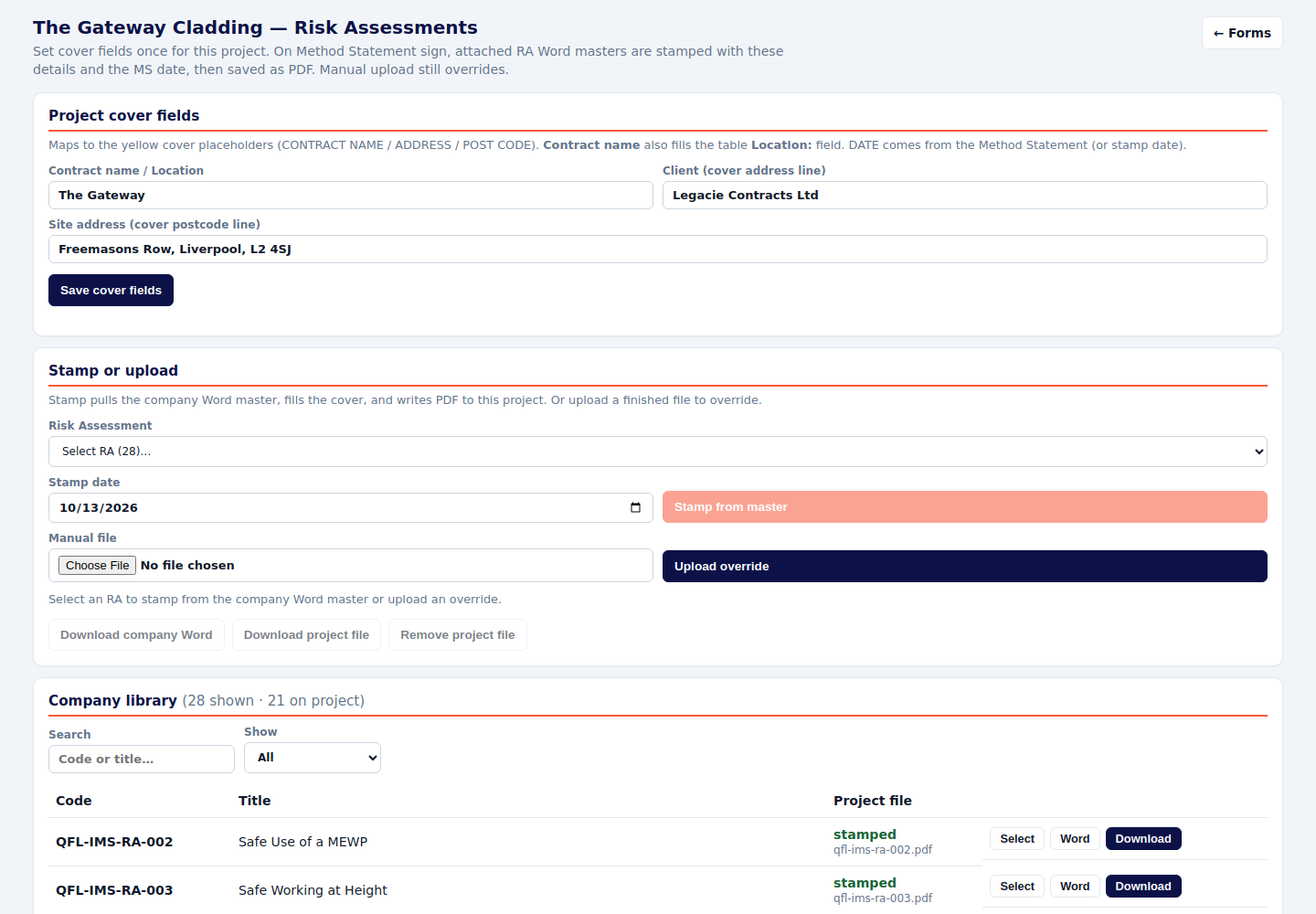
Risk assessments
- Open Library. Fill the project cover fields and save them.
- Stamp pulls the company master, fills the cover, and stores the PDF on the project. Upload a finished file only when this project needs a different version.
- On the method statement, tick the assessments that apply. They travel with that method statement.
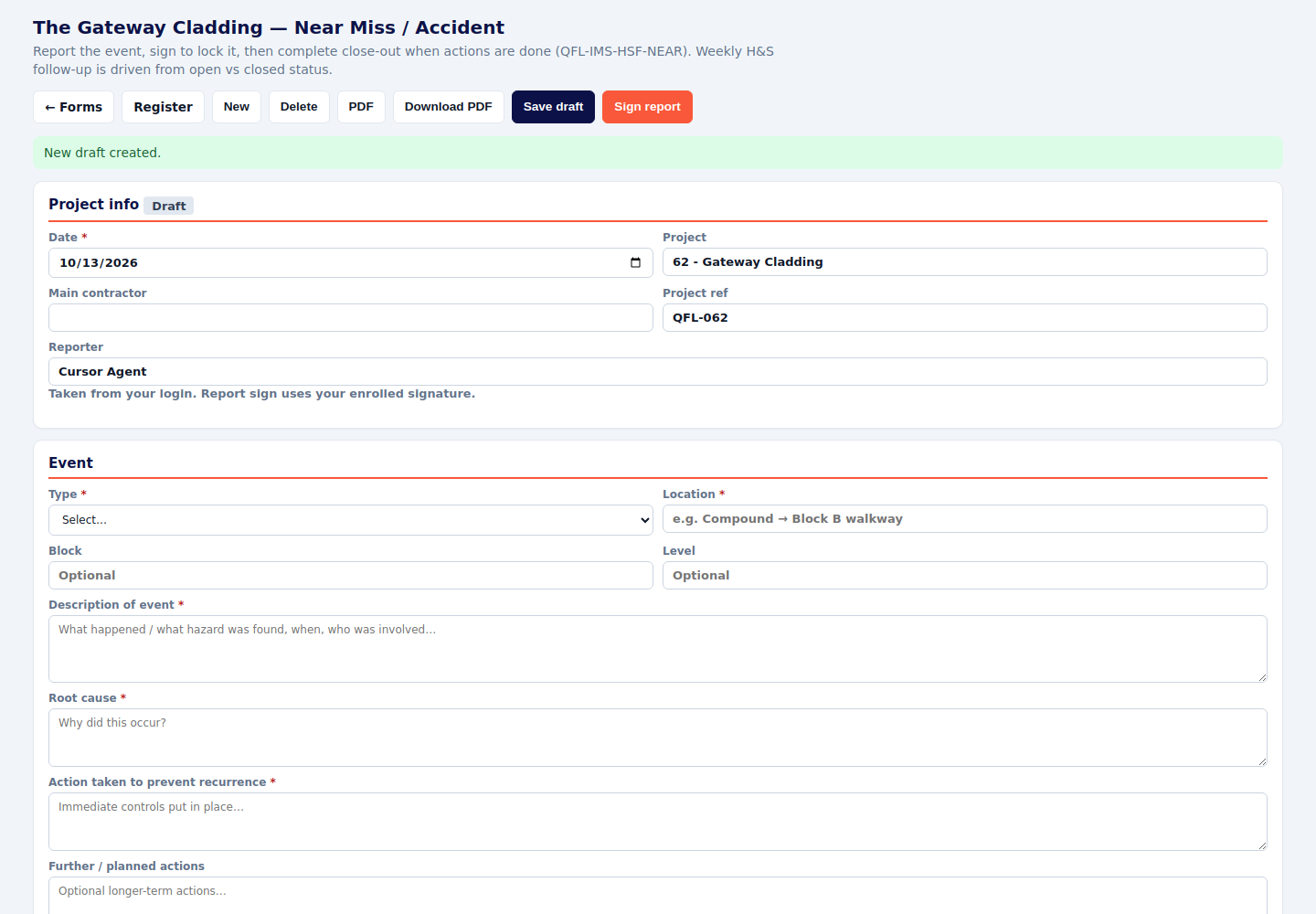
Near miss / accident QFL-IMS-HSF-NEAR
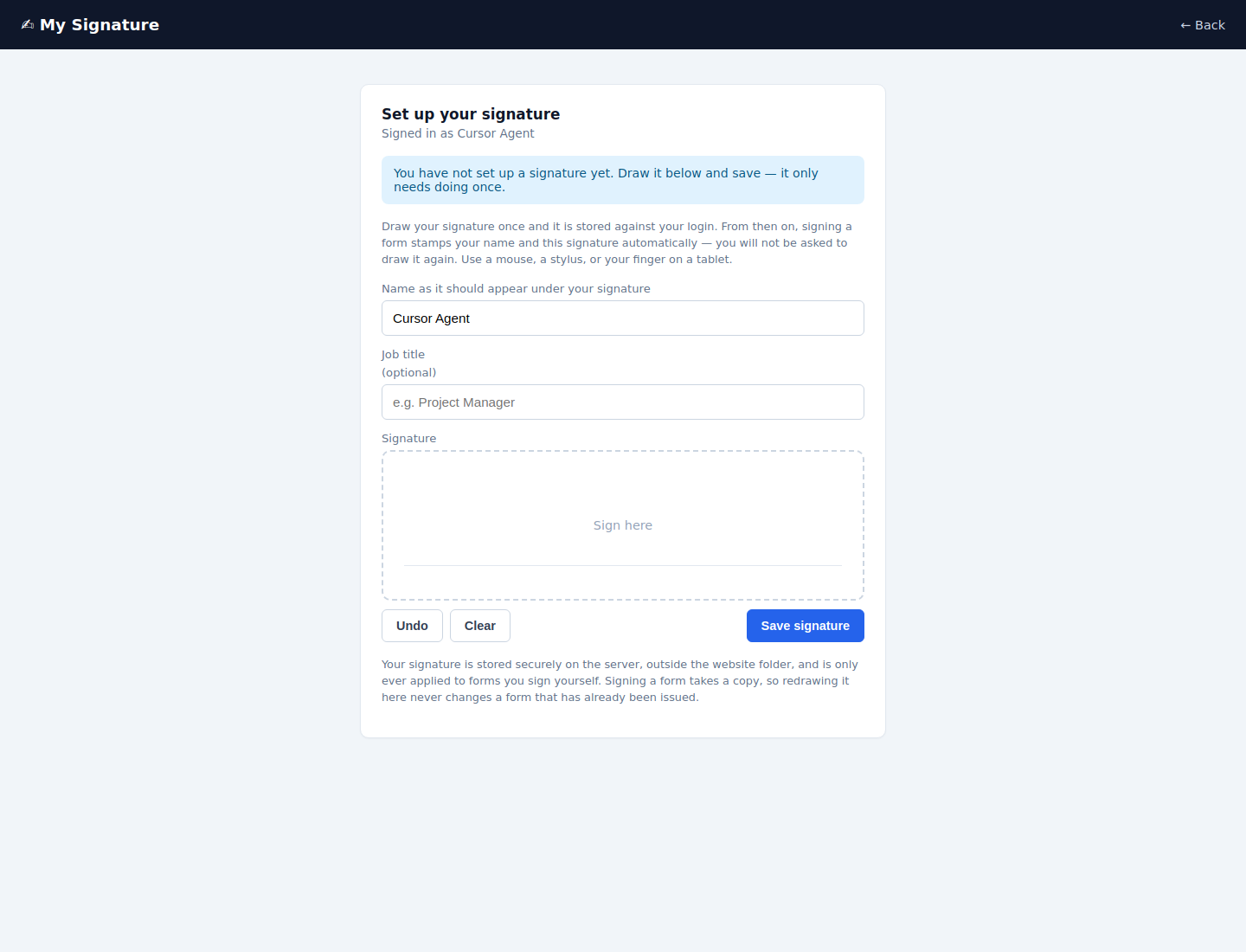
- You need a signature set up before this form will sign.
- Pick the type, the block and level, and write what happened, the root cause, and the action taken. Add photos if you have them.
- Sign report. That locks the event. Close-out stays editable.
- When the action is finished, complete close-out and sign that too. Until then it stays open on the weekly return.
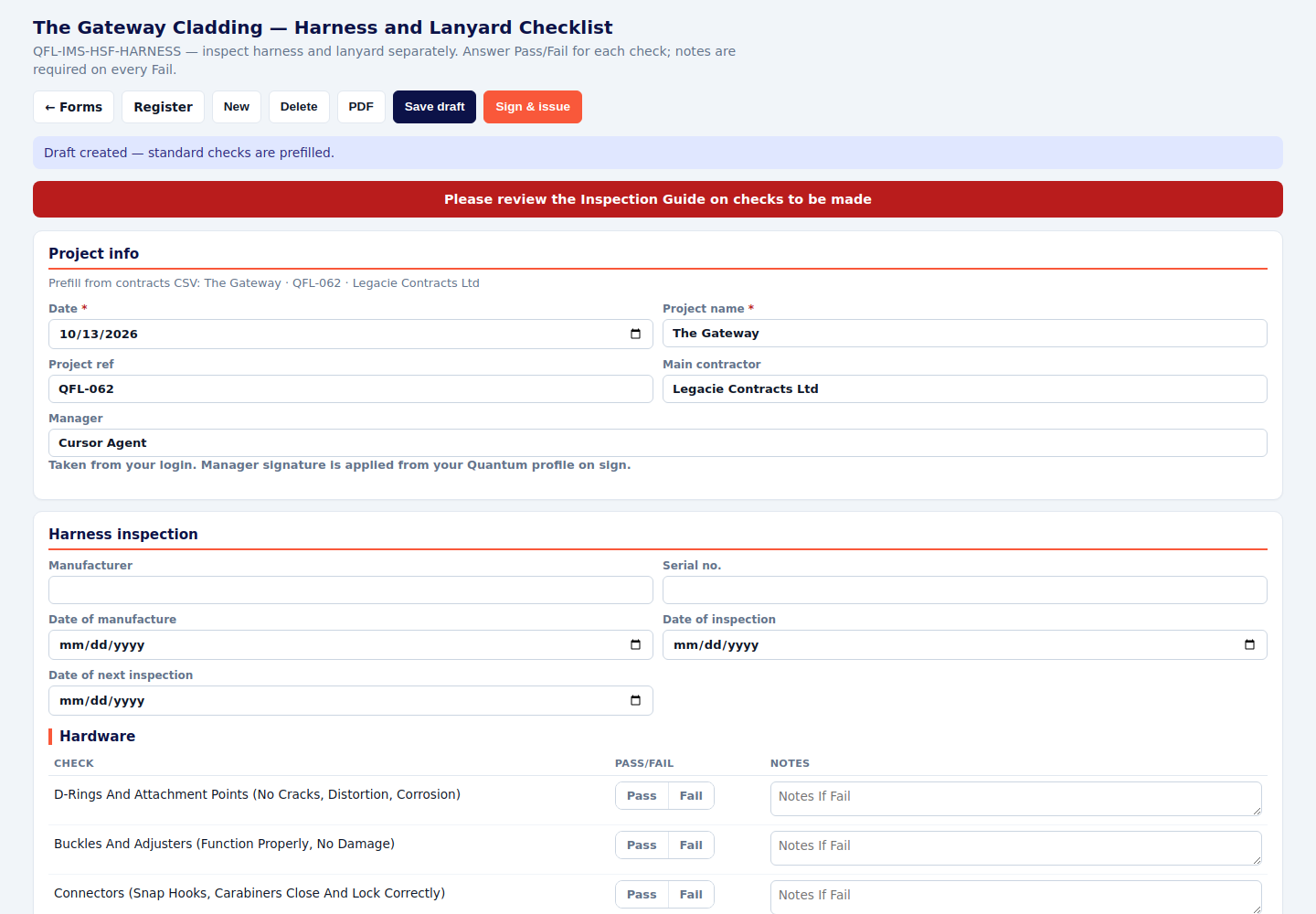
Harness and lanyard QFL-IMS-HSF-HARNESS
- Read the inspection guide on the form, then inspect the harness and the lanyard separately.
- Record manufacturer, serial number and dates. Answer Pass or Fail on every check. A Fail needs a note.
- Any Fail means remove from site. Sign & issue.
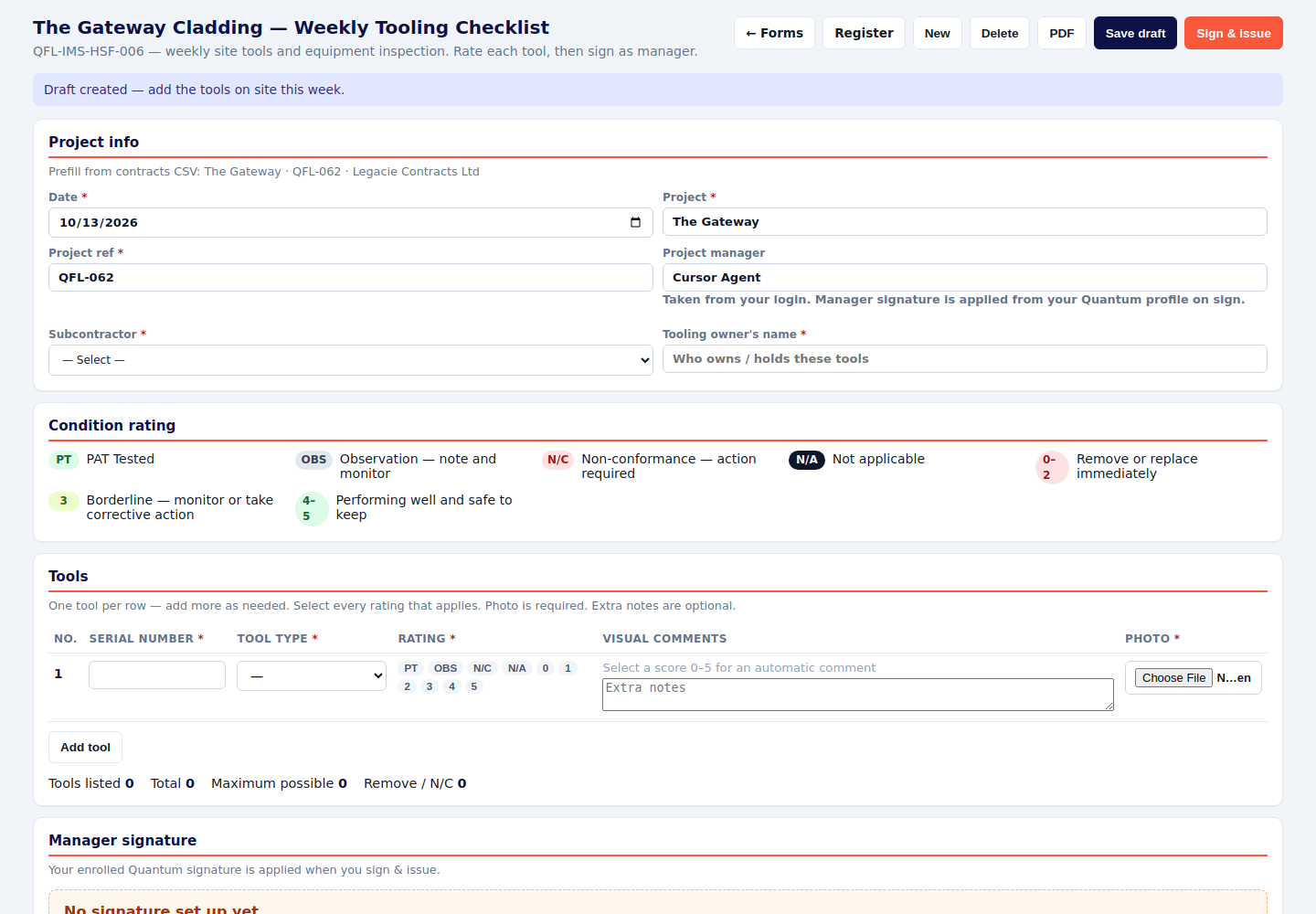
Weekly tooling QFL-IMS-HSF-006
- Pick the subcontractor and the tooling owner.
- Add the tools on site this week. Rate each one: PT (PAT tested), OBS (watch it), N/C (action required), N/A, or 0–2 (remove or replace immediately). 3 and above can stay, with the note the scale asks for.
- Add a photo if a tool is damaged. Sign & issue as the manager.
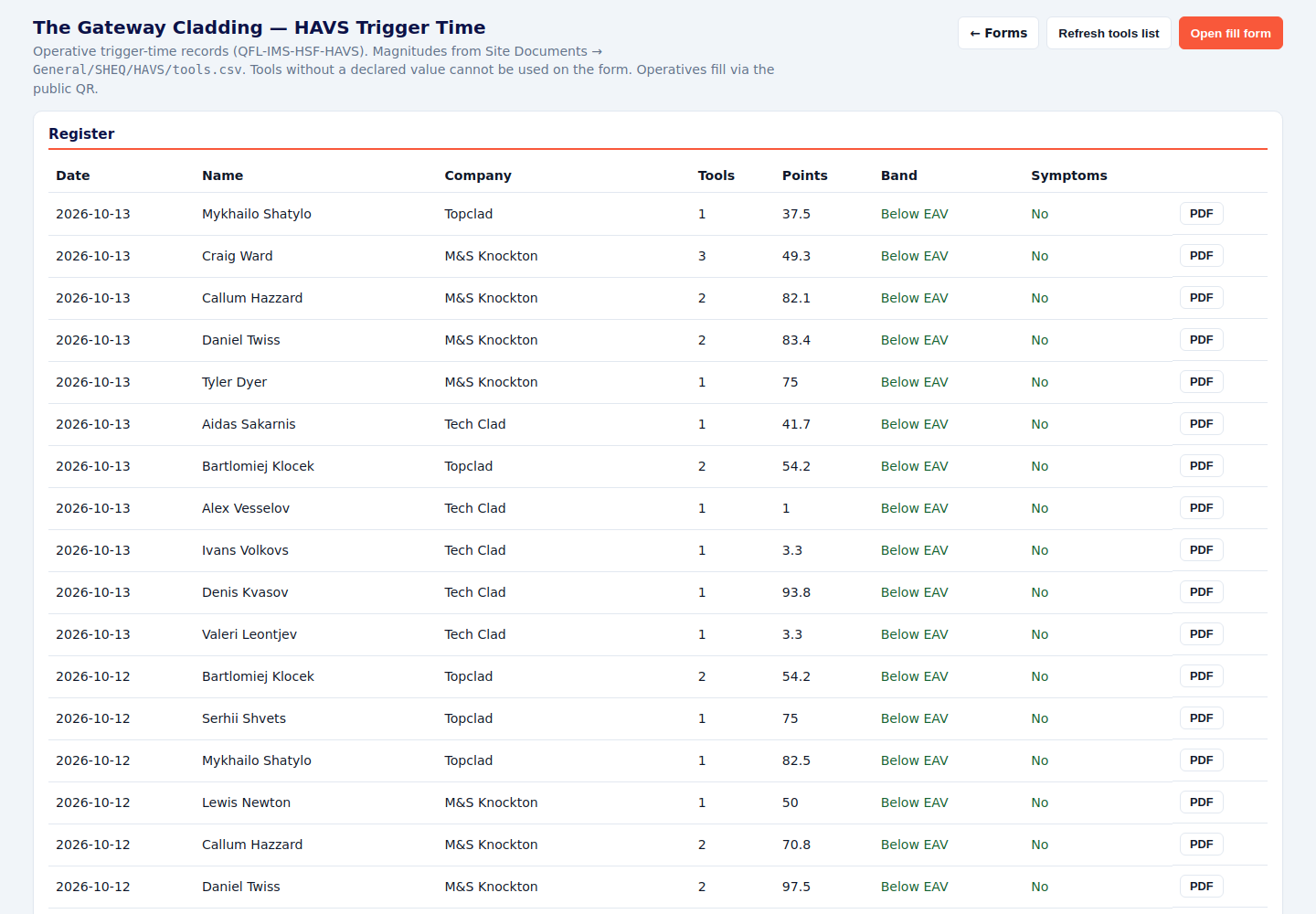
Hot works permit QFL-IMS-HSF-HWP
- Start a permit for today. Location, duration, the work, and the equipment are all required.
- Tick Yes, No or N/A for each hazard and precaution. Add any extra hazard in the box at the bottom.
- Collect the worker confirmations, then Authorise & accept.
- When the work finishes, close the permit. If it stops early, cancel it. An open permit at the end of the day is unfinished.
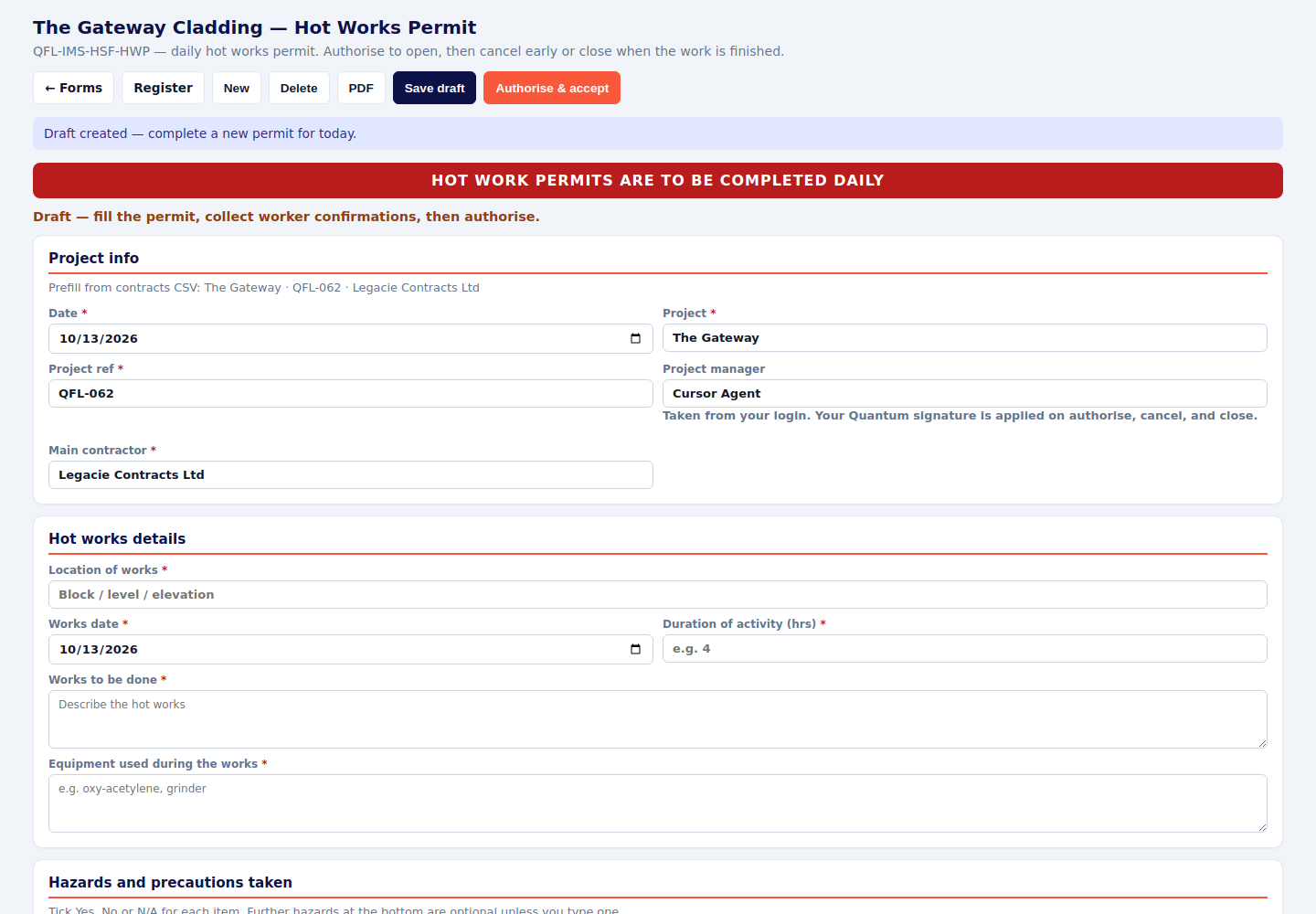
Site induction QFL-IMS-HSF-001
- Write the person’s full name and surname, the same way they will sign the attendance sheet. A first name on its own will not match later.
- Pick the company from the list. Typing a company in by hand is switched off.
- Brief the topics. Record competencies, PPE and site rules. Cards that are held need a photo of the front and the back.
- Both parties sign, then Sign & issue. Use Share remote if the person is completing their part on their own phone.
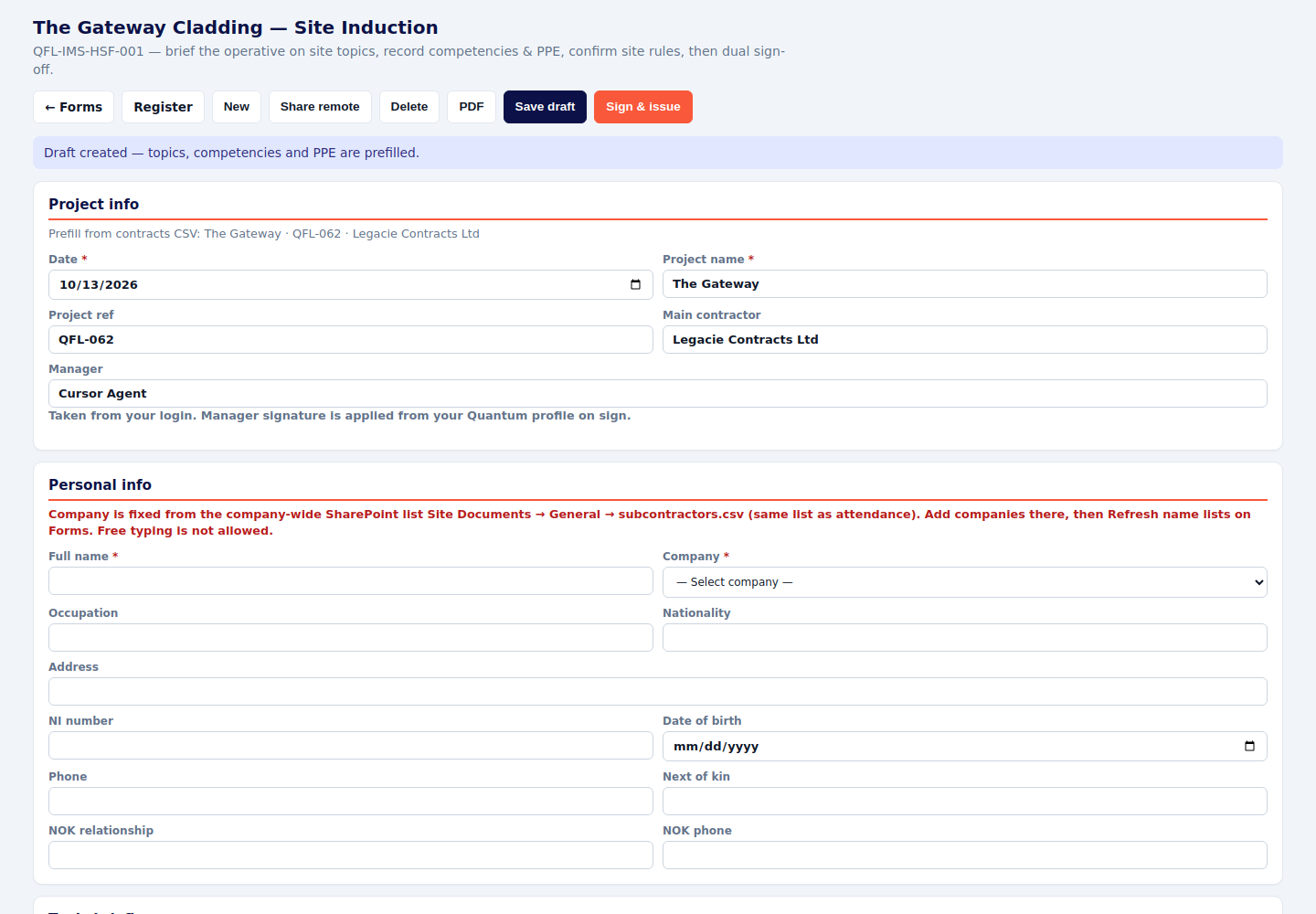
Training matrix
- Open View matrix. Filter by company, or show training gaps only.
- Open the person and add the missing card. The copy stays with them on the next project.
- Amber is a gap. Red is no induction. Plant forms will refuse an operative who is not marked competent for that machine.
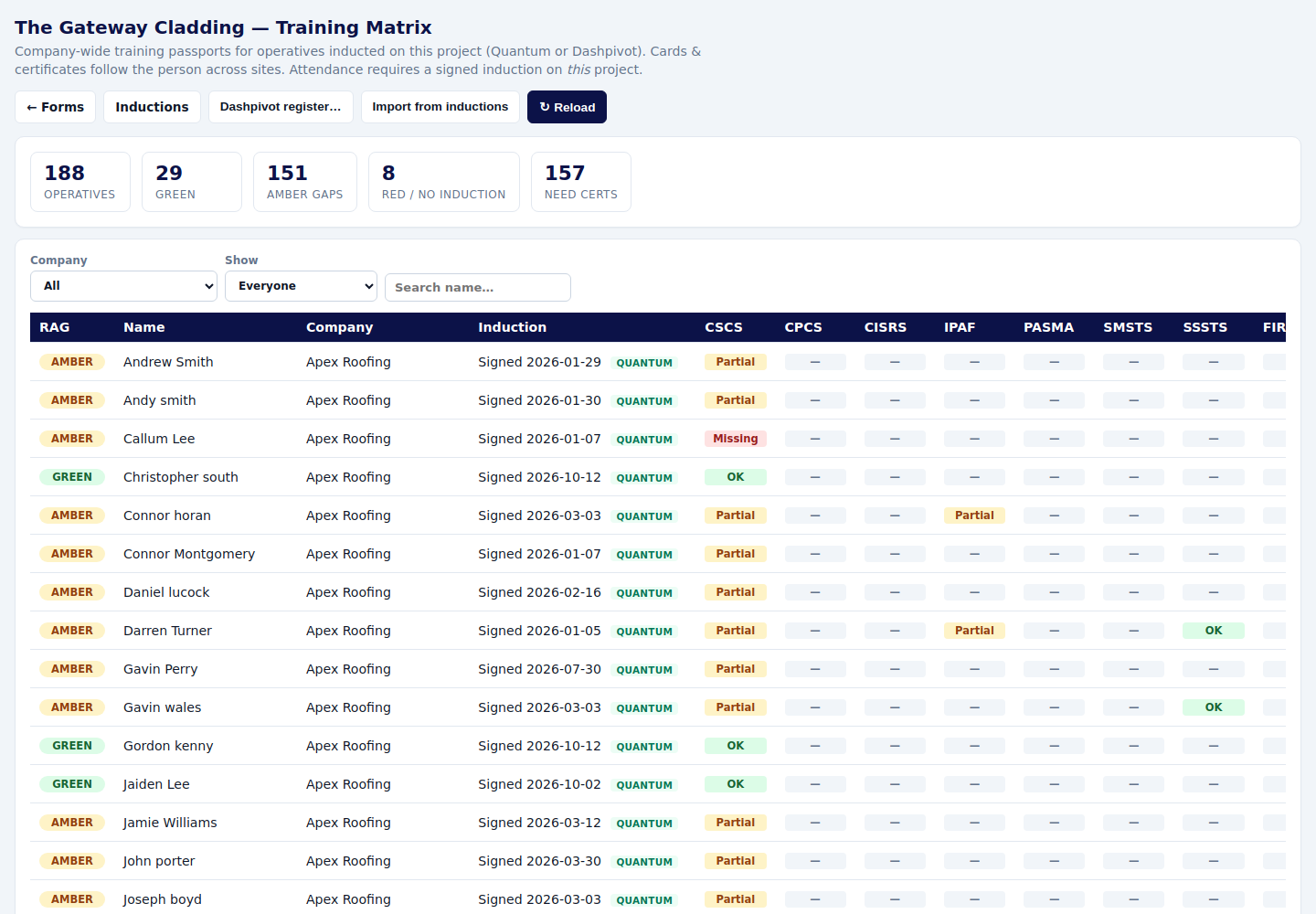
HAVS trigger time QFL-IMS-HSF-HAVS
- Print or show the QR from View / QR.
- Each operative records the tools they used and the trigger time. Tools with no vibration magnitude cannot be picked.
- Managers read the register: points, band, and whether symptoms were reported. Chase anyone missing for the day they used a vibrating tool.
Plant inspections
Every machine below is a daily Yes / No / N/A check, signed on the pad on the form. The checklist stays locked until a competent person is selected. Competence comes from the operative’s record: the training has to be on the matrix before the form will open the questions.
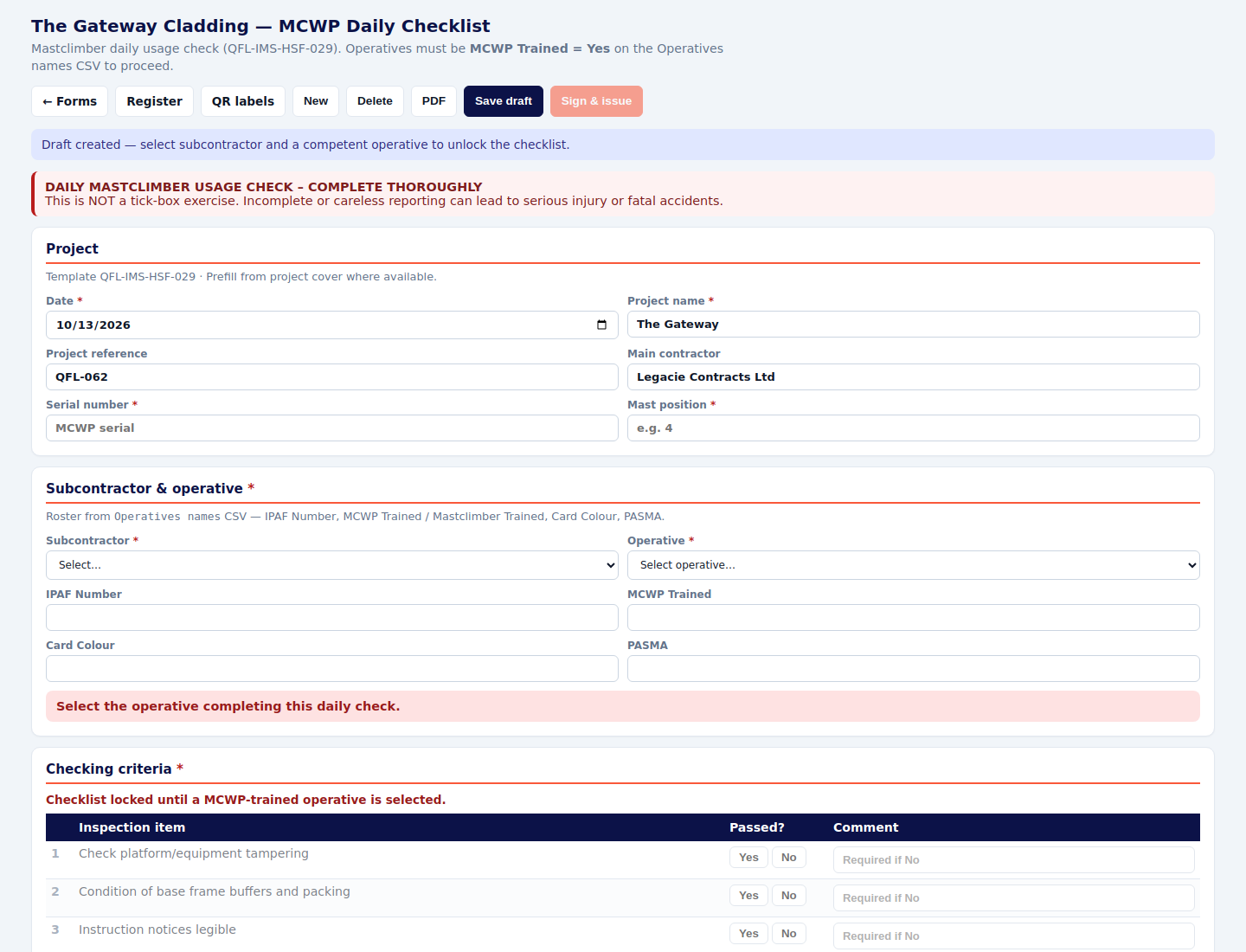
MCWP (mastclimber) QFL-IMS-HSF-029
- Press New. Enter the serial number and the mast position.
- Pick the subcontractor and the operative. The checks stay locked until that person is MCWP trained.
- Answer every line. A No needs a comment. Sign & issue on the pad.
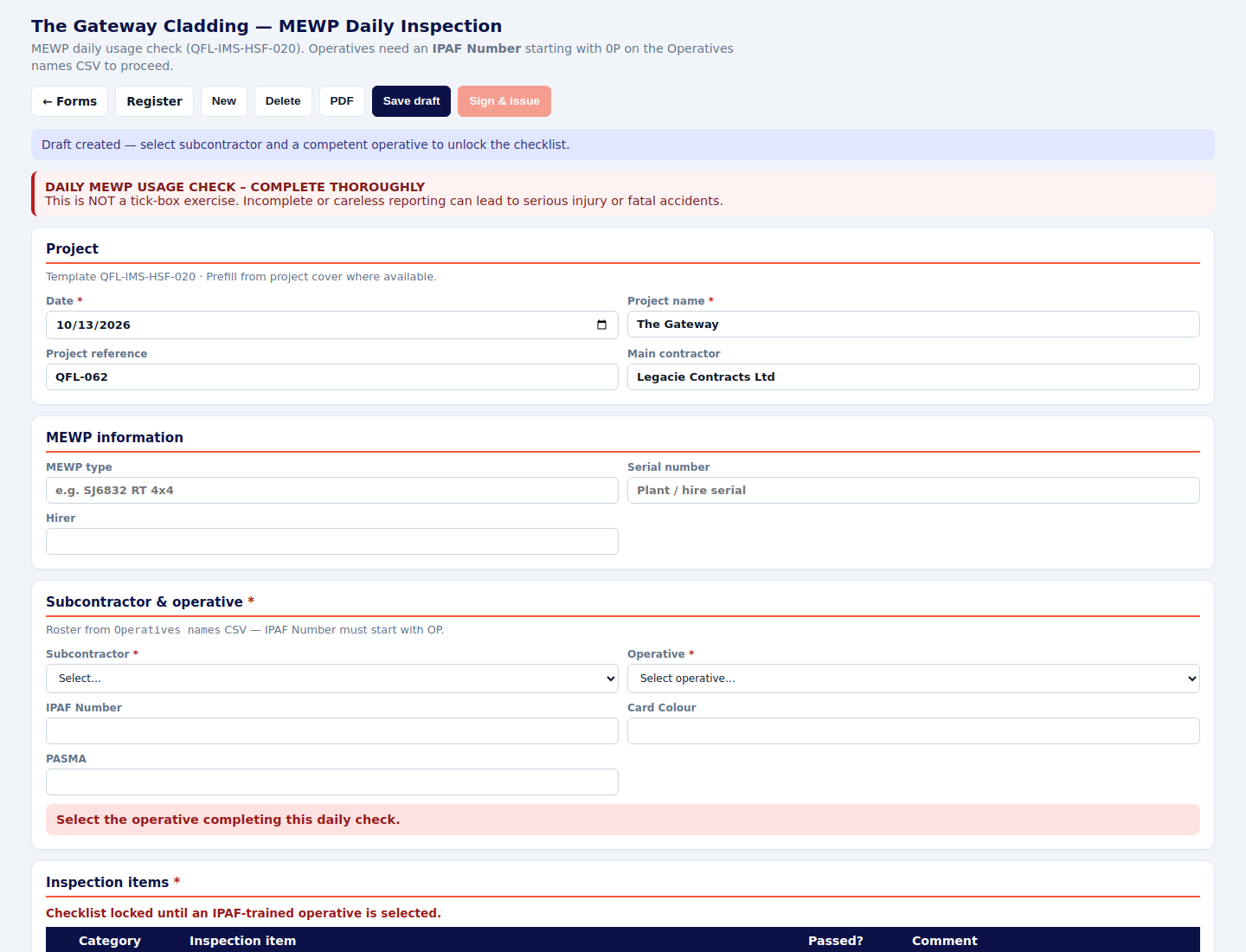
MEWP QFL-IMS-HSF-020
- New form, machine details, then the operative.
- If they cannot be selected, their IPAF number is missing or does not start with OP. Fix the training record, then come back.
- Complete Yes / No / N/A and sign on the pad. There is a public QR as well.
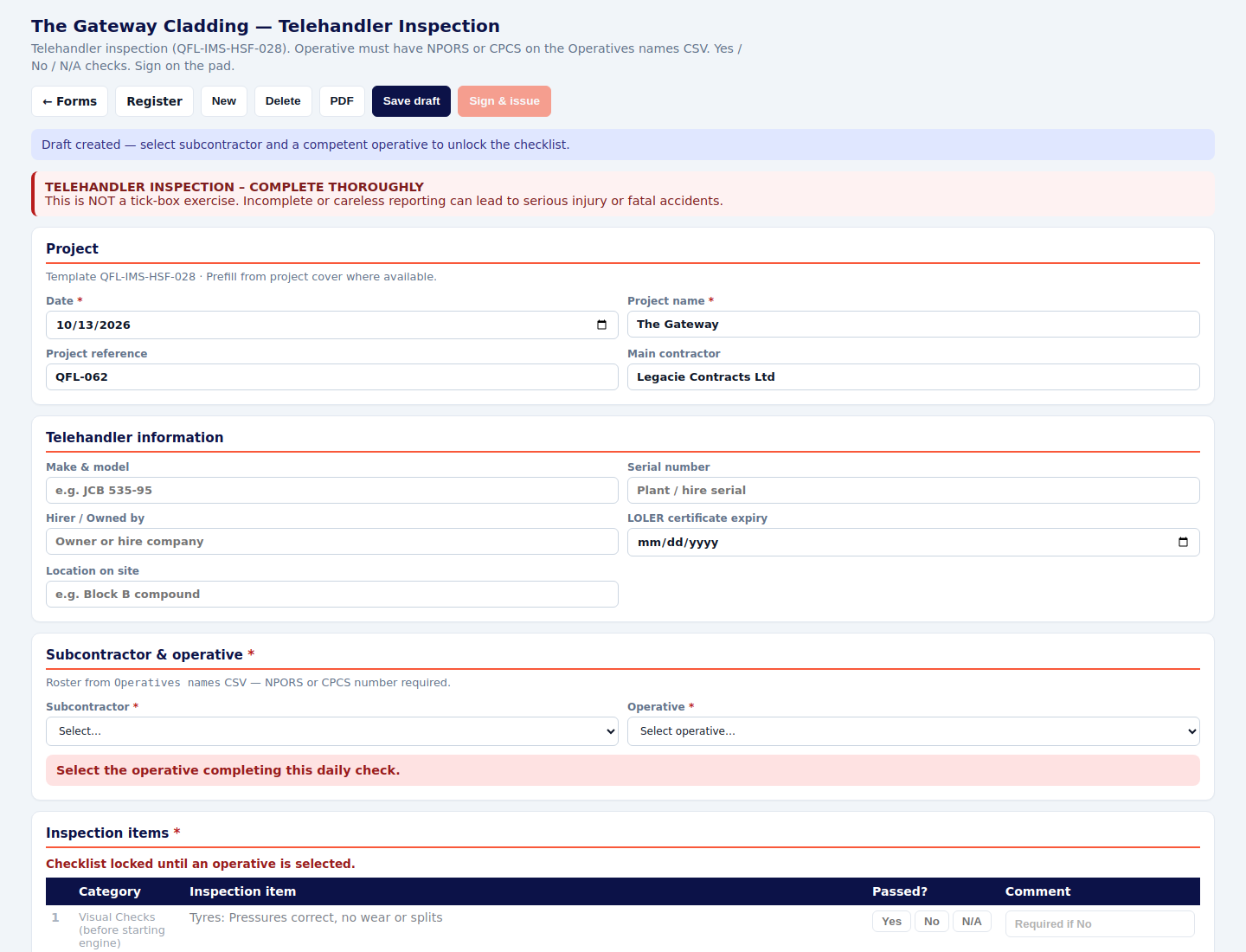
Telehandler QFL-IMS-HSF-028
- Same pattern as the MEWP: New, machine, competent operative, every line answered, sign on the pad.
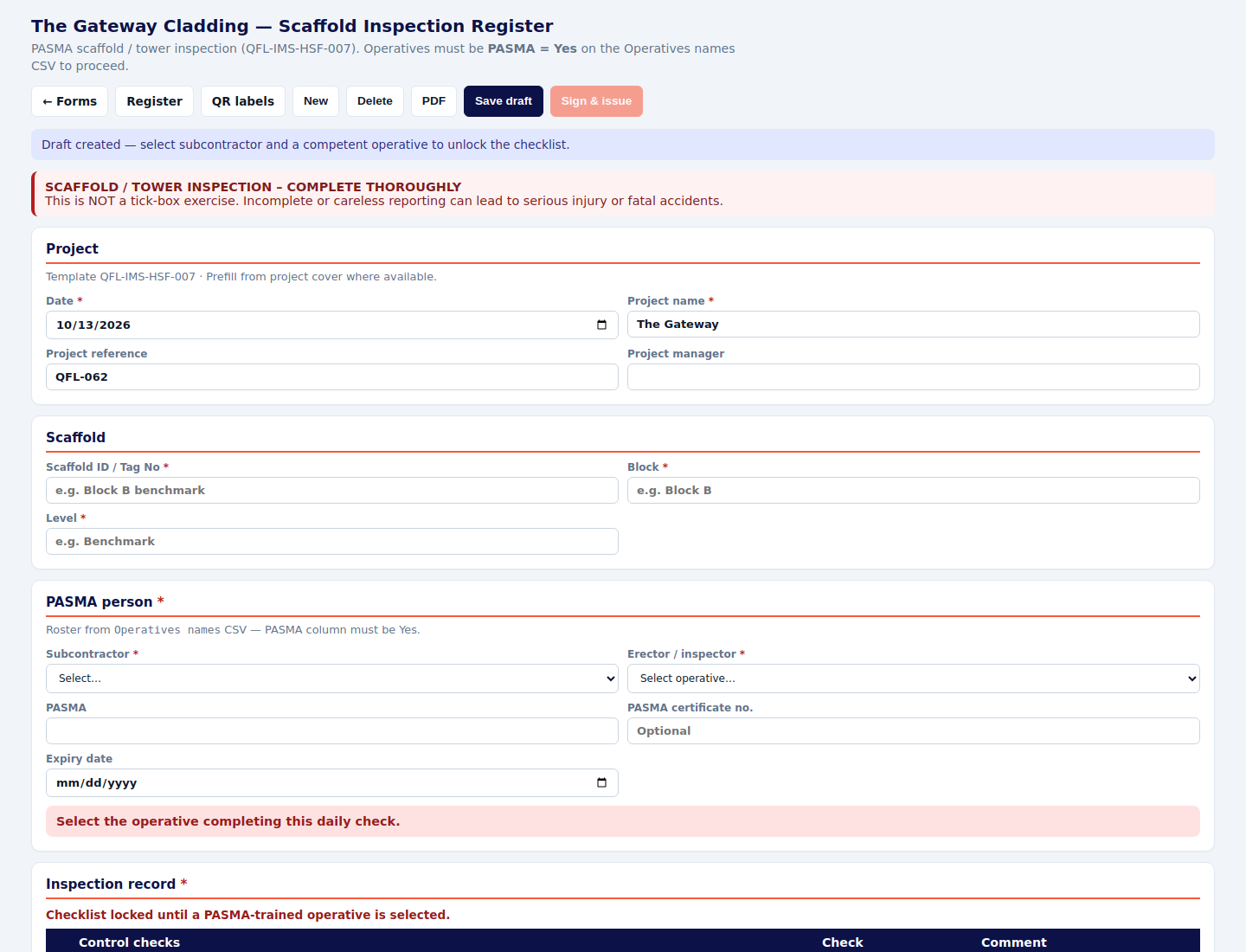
Scaffold inspection (PASMA) QFL-IMS-HSF-007
- New inspection. Pick a PASMA-trained operative.
- Answer Yes / No / N/A. Comment on every No. Sign on the pad.
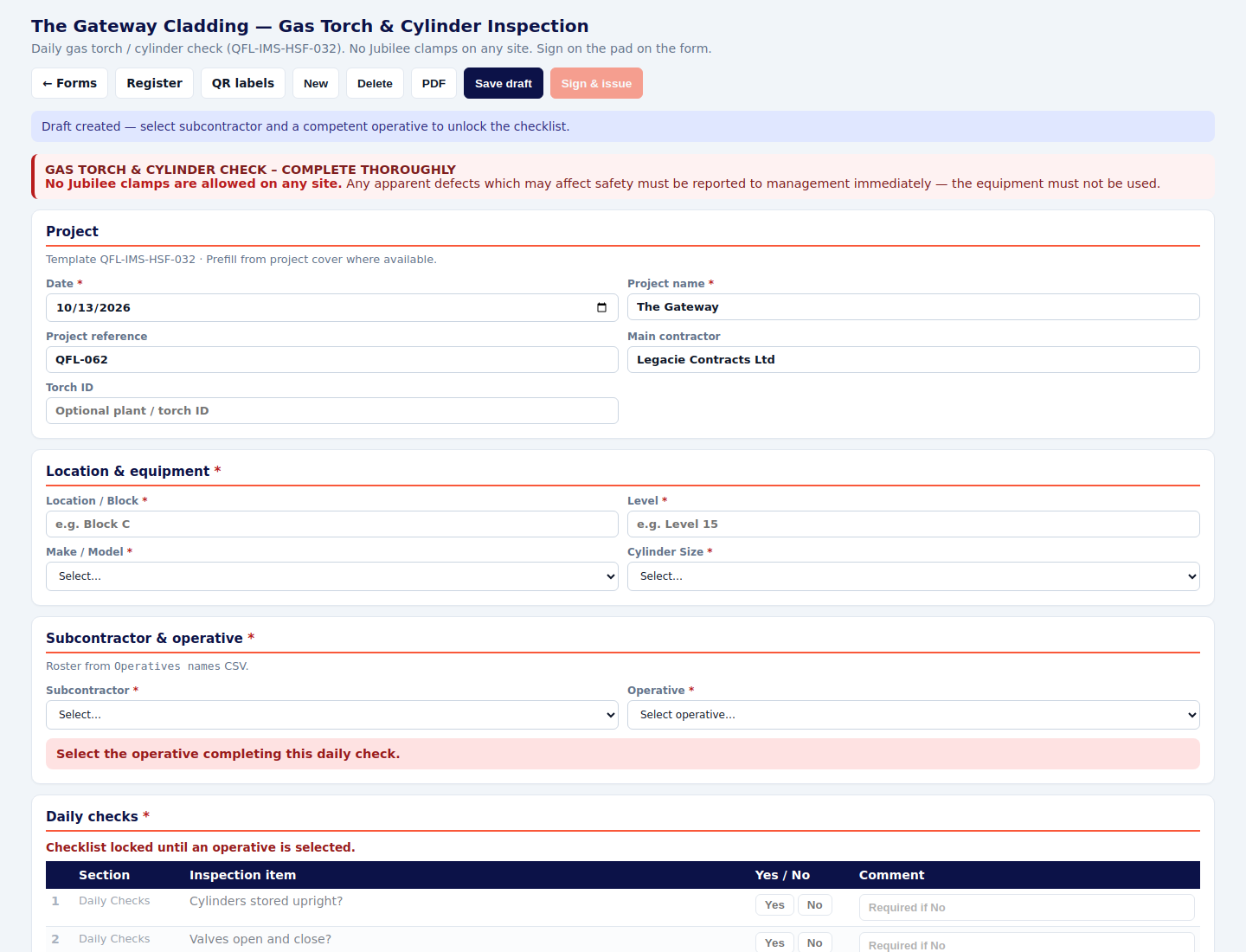
Gas torch and cylinder QFL-IMS-HSF-032
- Record location, make and model, and cylinder size.
- Answer the Yes / No checks, including the hose fittings. A Jubilee clip is a fail.
- Sign on the pad.
Early warning and fabrication
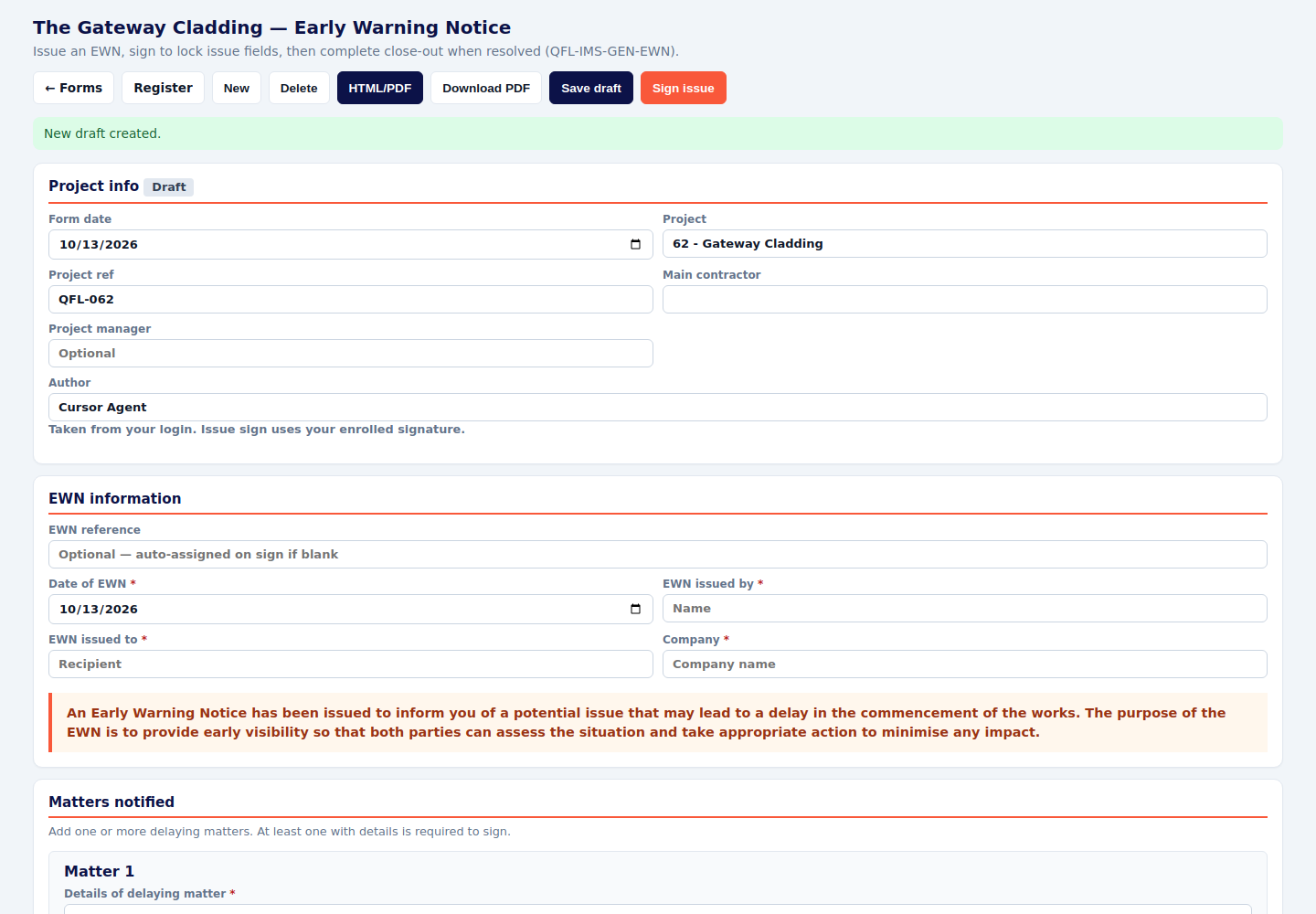
Early Warning Notice QFL-IMS-GEN-EWN
- Opening Fill on a day that already has a notice reopens that day’s notice. Press New when it is a different matter.
- Who it is issued by, who it is issued to, and their company.
- Add at least one delaying matter, with the detail and the effect. Attach anything that supports it.
- Sign issue to lock those fields. Complete close-out when it is resolved, and sign the close-out.
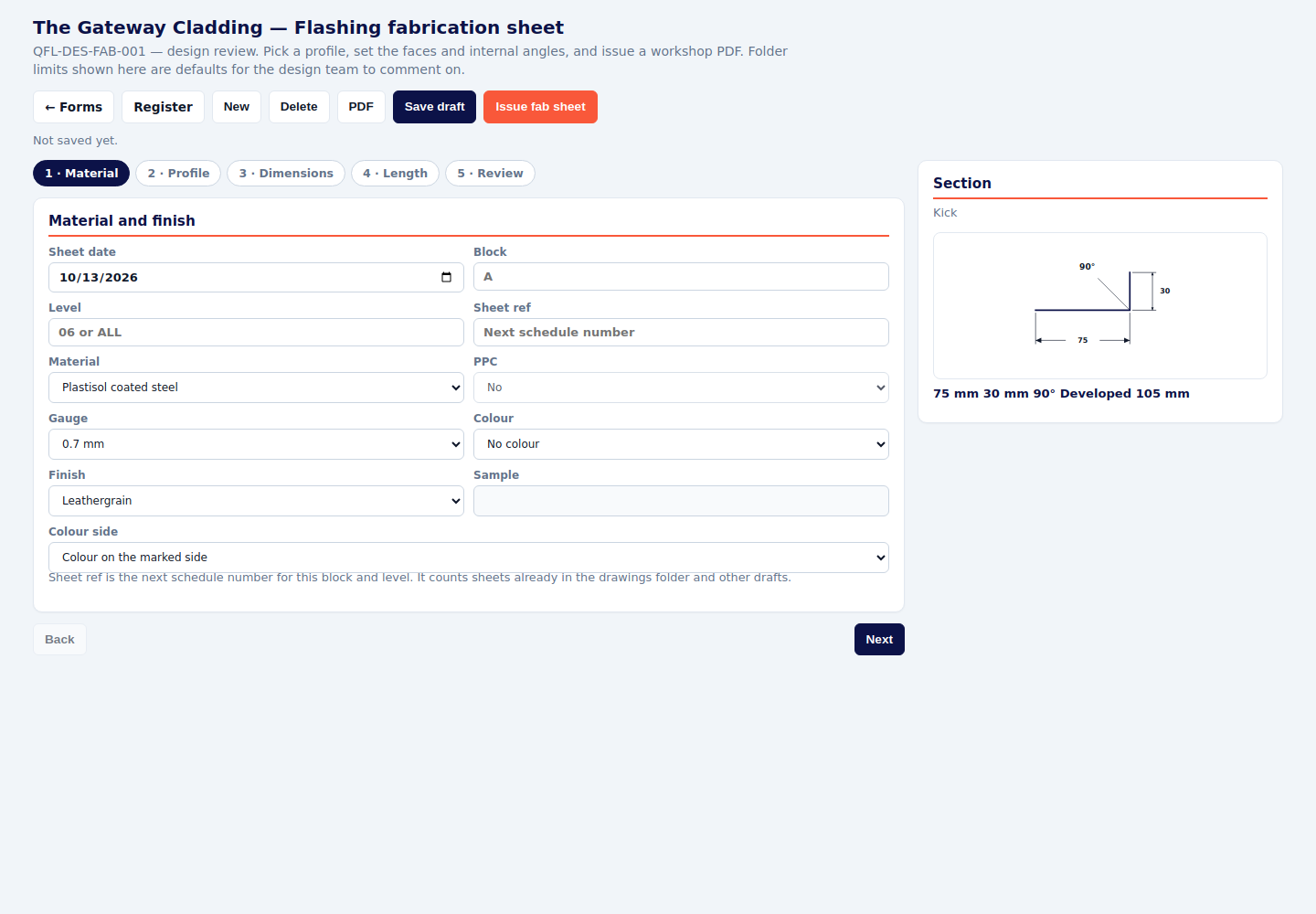
Flashing fabrication sheet QFL-DES-FAB-001
- Work the five steps in order: material, profile, dimensions, length, review.
- Set block, level, sheet reference, material, gauge and colour.
- PPC can be selected only when the material is aluminium. Aluminium with PPC is 2 mm or 3 mm, and the crushed hem is switched off.
- Check the profile picture, then Issue fab sheet. Save draft if you are still reviewing it.
What “finished” looks like
- The form is on the register with a signed status, and the PDF opens.
- Every star is filled, every check has an answer, and every No or Fail has a comment.
- Photos and drawings the form asked for are attached to the form, not only sitting in a camera roll.
- Names are full names, companies are picked from the list, and the person is signed in on attendance before a toolbox talk or, on Gateway, before they start the day.
- Close-out forms (incidents, early warnings, hot works) are closed when the action is finished, not left open for the weekly report to keep flagging.
If you are unsure which form to use: something that happens today sits in Daily; the week’s story sits in Weekly; an area or a product being accepted sits in QA; a person, a permit or an incident sits in SHEQ; a machine sits in Plant.
Quantum Facades · Hub forms guide · October 2026